Percipio Viewer supports setting a network camera’s IP address to a static IP address or a dynamic IP address (DHCP). Percipio Viewer can open the camera only when the camera IP address and the host PC IP address are on the same subnet.
You can choose either of the following methods to set the camera’s IP address:
If the camera is not shown in the Camera List, use Tools > IP Configuration and enter the MAC address printed on the camera label as the physical address.
If the camera is shown in the Camera List, but its icon is red and marked “InvalidNetCam”, or its IP address is not on the same subnet as the host PC, select the camera in the camera list and use ModifyIP.
Prerequisites
Before setting a static IP address, ensure that the host PC’s IP address is on the target subnet.
If the camera is currently connected to the software, disconnect it before setting the IP.
Procedure
Method 1: From the menu bar (camera not shown in the camera list)
On the menu bar, select Tools > IP Configuration to open the IP Configuration dialog.
Enter the MAC address printed on the camera label in Mac Address.
Select the camera IP configuration method:
Static IP: Enter the “IP Address”, “Mask” (Subnet Mask), and “Gateway”.
DHCP: Select “DHCP”. The DHCP server on the network automatically assigns an IP address.
Click Confirm to complete the IP configuration.
Method 2: From the camera list (camera shown but cannot be connected)
On the Camera List page, click to refresh the camera list.
Click the serial number of the target camera to select it.
When the target camera does not appear in the camera list, or the camera cannot be connected, click the Can'tfindcamera? button at the bottom of the camera list to launch the troubleshooting wizard. The wizard guides users through connection issue diagnosis in a question-and-answer format. Users simply select the corresponding options as prompted and click Next to proceed.
After connecting, the interface automatically switches to the Camera Page. Click at the top of the page to disconnect.
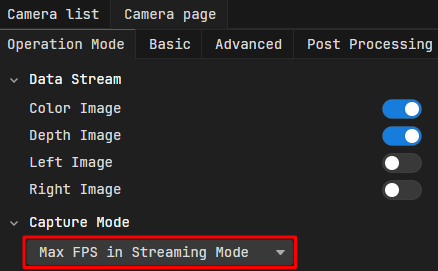
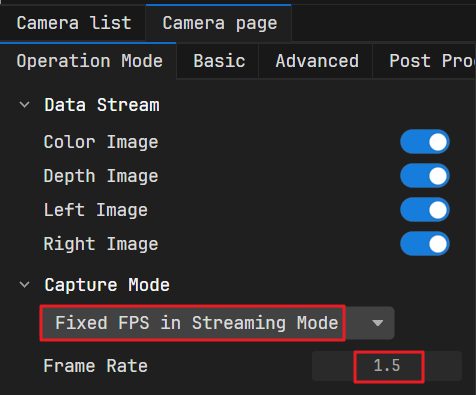
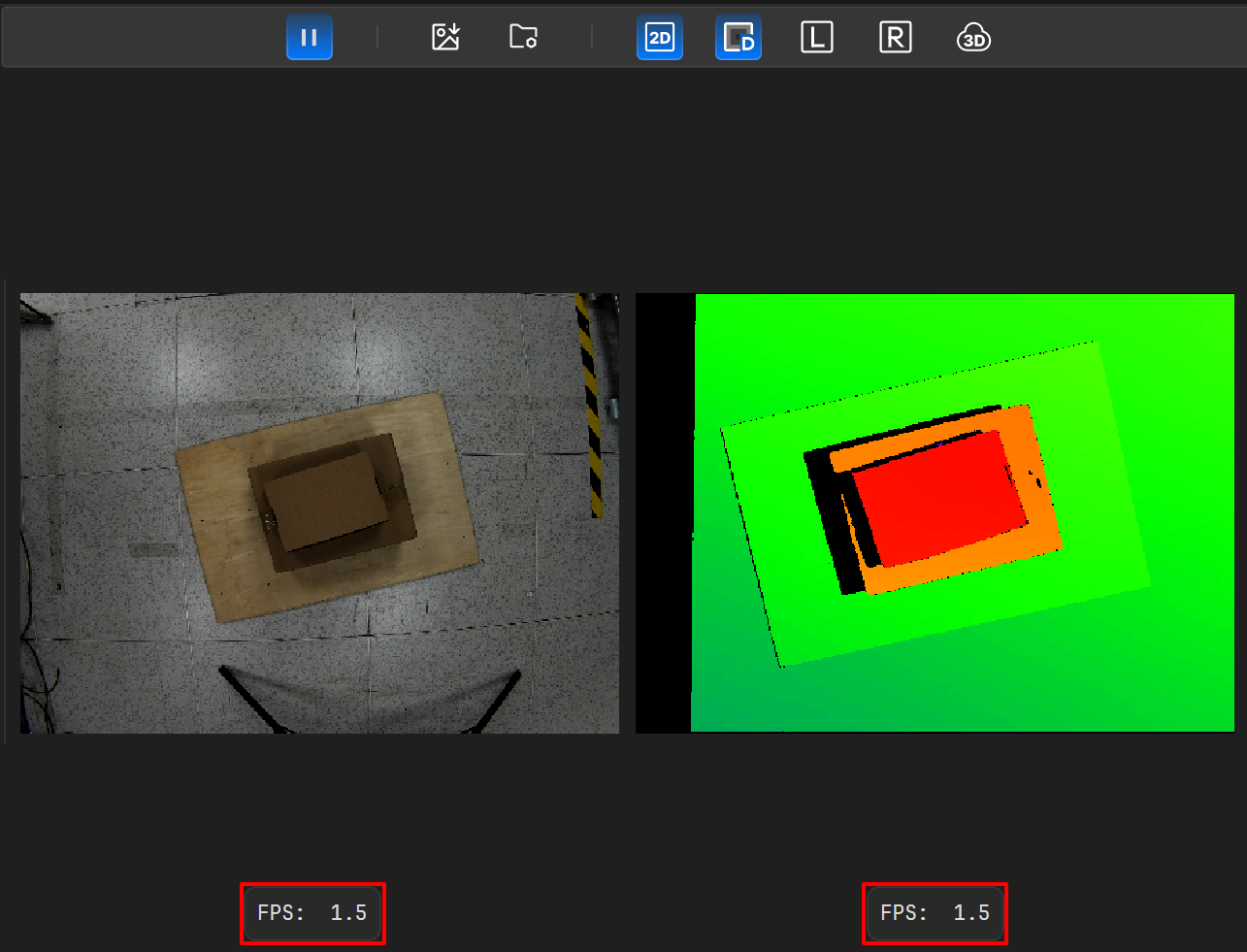
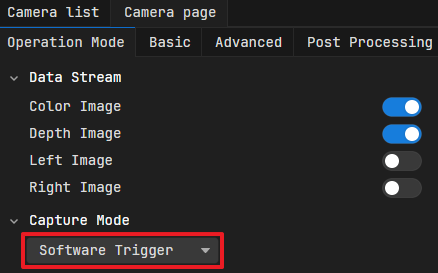
In this mode, the software continuously outputs enabled data streams at the set frame rate. The configured fixed frame rate cannot exceed the camera processing capability, which is the camera output frame rate in Max FPS in Streaming Mode.
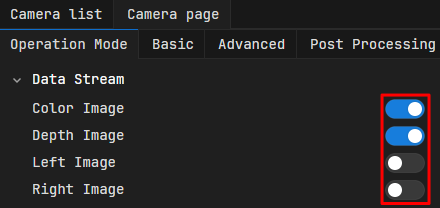
In the Data Stream field of the Operation Mode page, enable the corresponding data streams, such as “Depth Image” and “Color Image”.
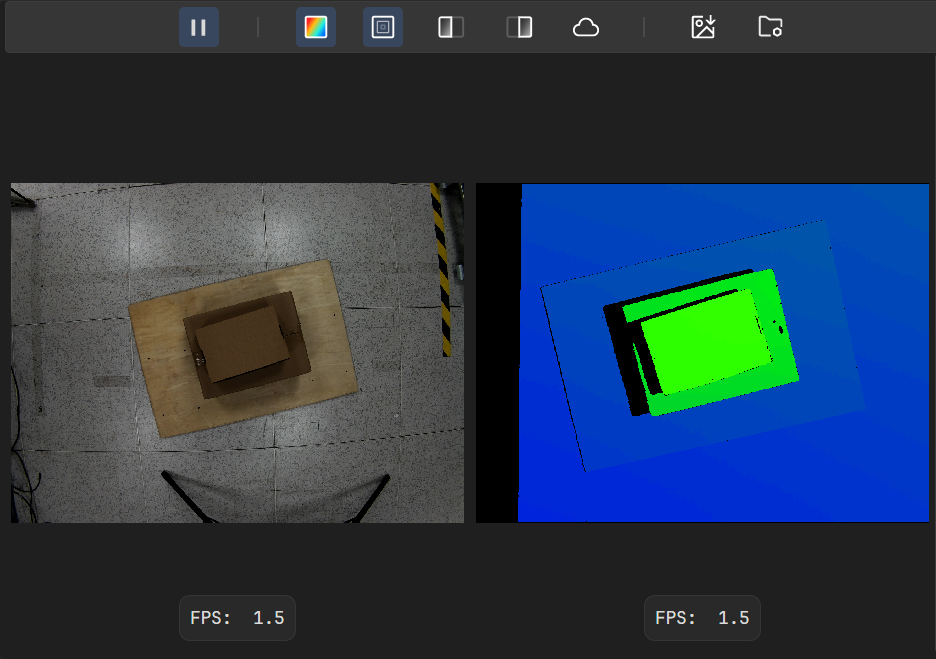
Even when the software outputs images at the configured frame rate, the actual frame rate can still fluctuate slightly around that value.
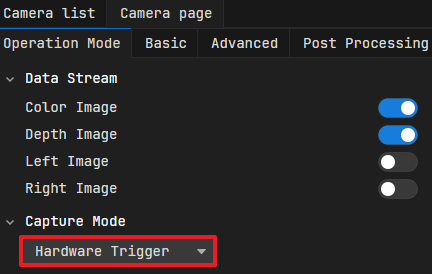
In this mode, the camera accepts external hardware trigger signals and outputs images.
Complete the hardware wiring to ensure the camera can receive external hardware trigger signals. For specific wiring methods, refer to Hardware Trigger Connection Methods.
In the Data Stream field of the Operation Mode page, enable the corresponding data streams, such as “Depth Image” and “Color Image”.
Click . At this point, a software trigger button will appear next to it. Then click and to turn the color and depth views on/off.
Note
When the camera latency is excessively high, you can manually set the Timeout (the latency upper limit) to ensure that latency data is refreshed in time and image acquisition is timely.
Enable the right image data stream, click , then click above the image capture area to view the right image. Click again to close the right image view.
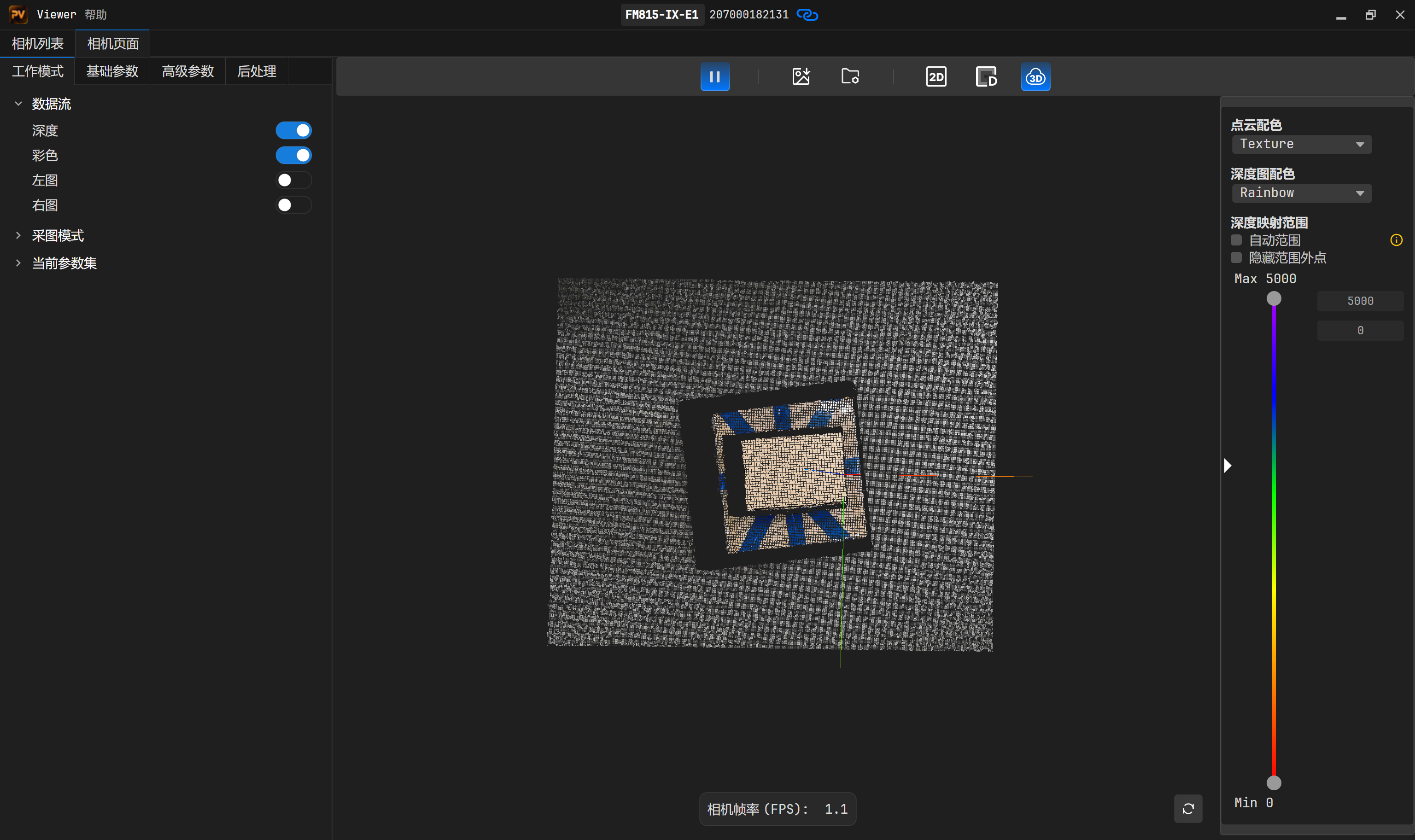
Enable the depth and color data streams, click , then click above the image capture area. Select “Texture” under the “Point Cloud Color Scheme” option to view the color point cloud.
When both depth and color data streams are enabled, click above the image capture area to open the image registration settings panel. The panel contains the following two parameters:
Direction: Select the registration method between the depth map and the color image.
Depth→Color: Align the depth map to the color image coordinate system. The color image retains its original resolution.
Color→Depth: Align the color image to the depth map coordinate system. The depth map retains its original resolution.
Depth Opacity: Adjust the opacity of the depth map in the overlay display (0%–100%). A higher value makes the depth map more visible; a lower value makes the color image more visible.
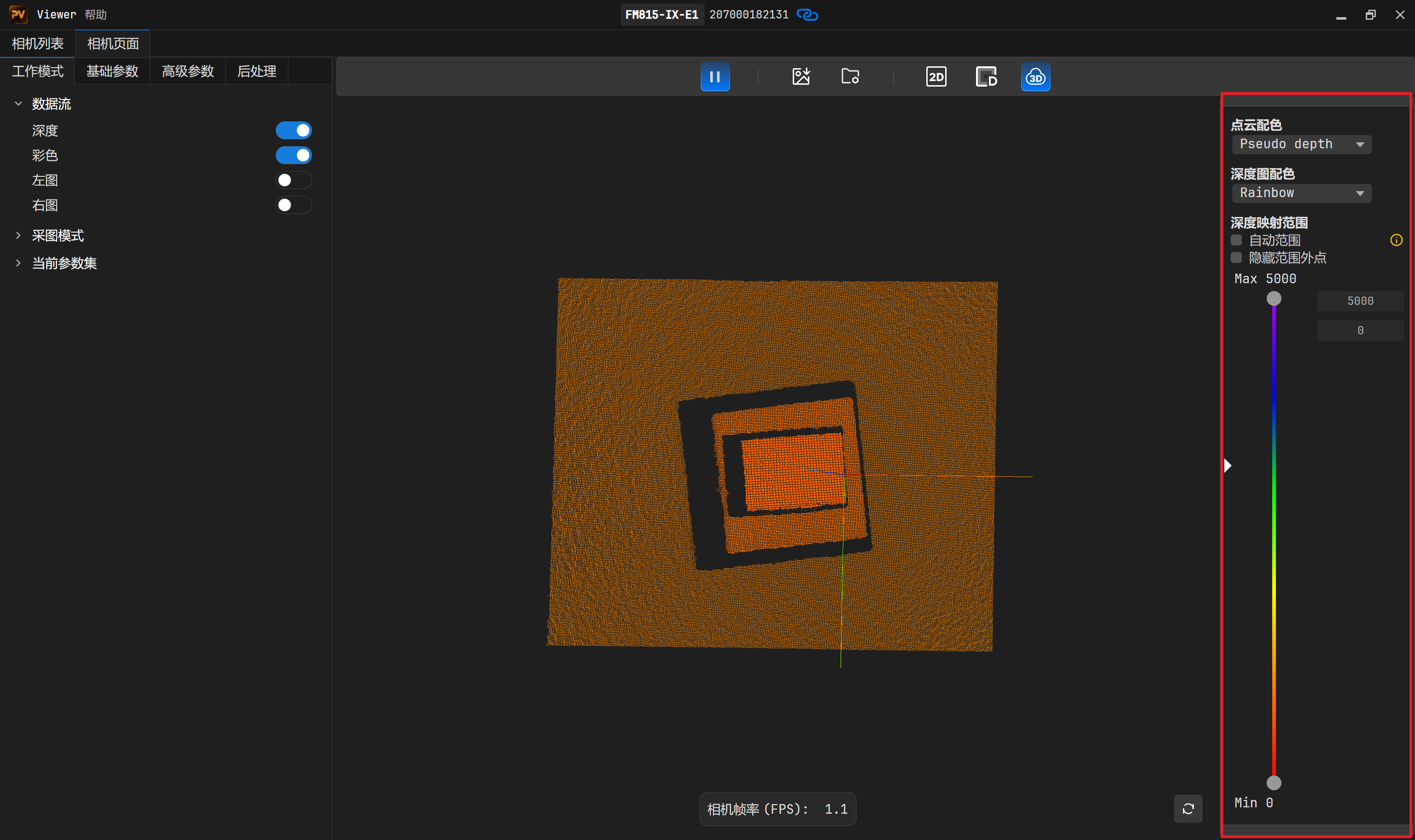
When the point cloud view is displayed, the rendering settings area on the right side of the image capture area opens automatically. Under the “Point Cloud Color Scheme” option, select the display color of the point cloud:
None: Does not display point cloud colors.
Pseudodepth: Displays a pseudo-color point cloud based on depth values.
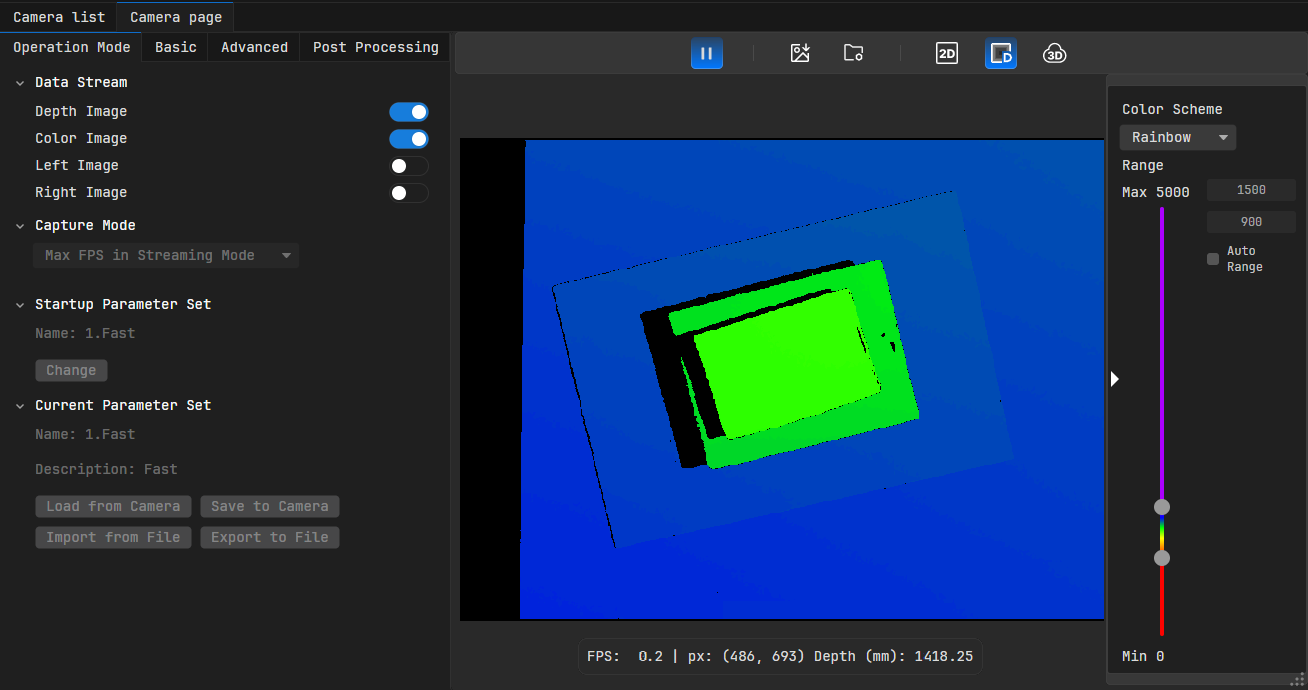
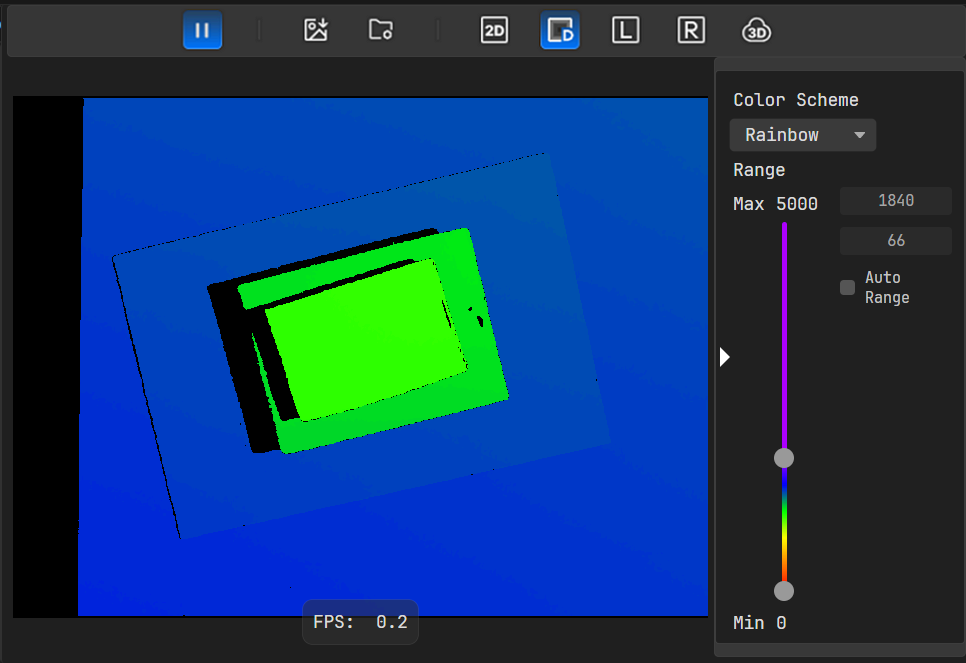
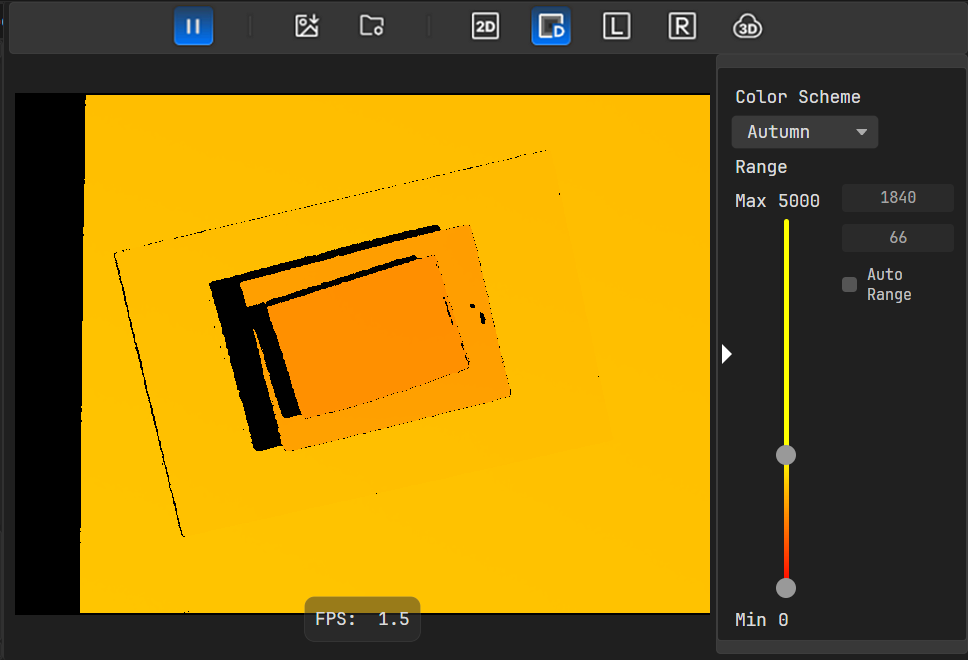
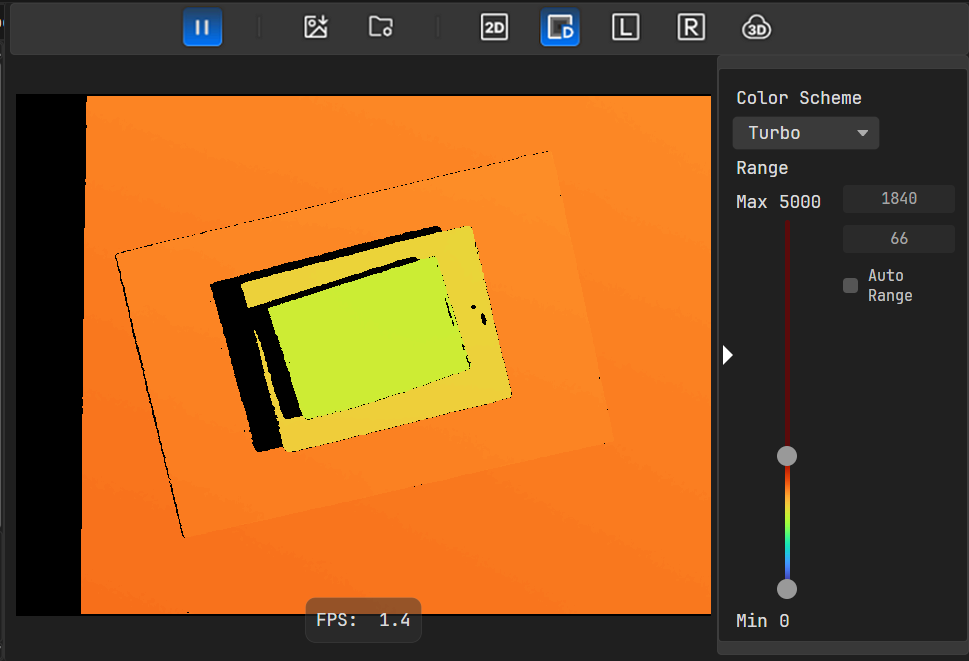
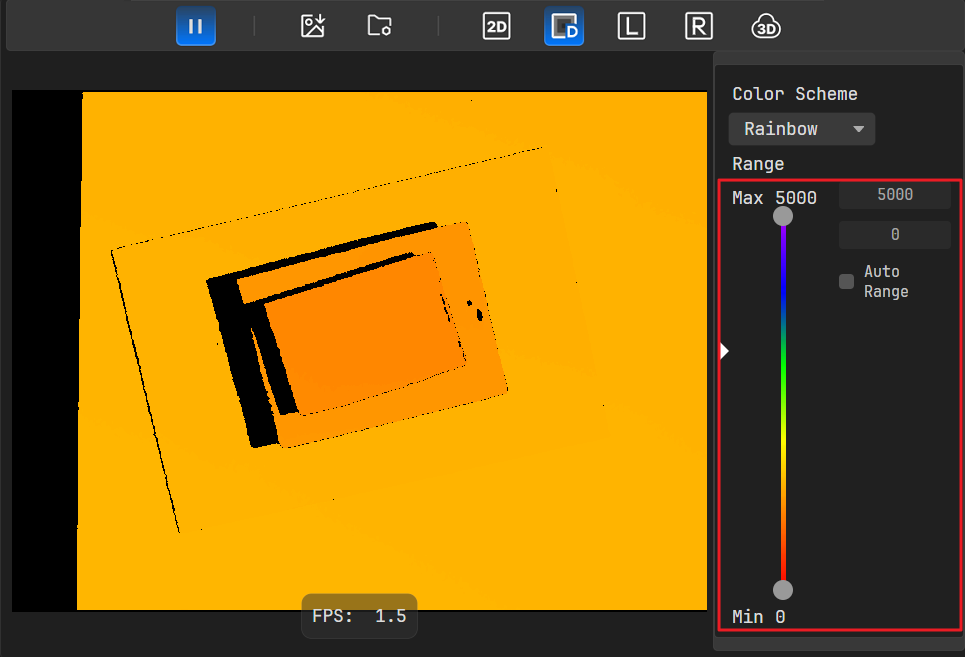
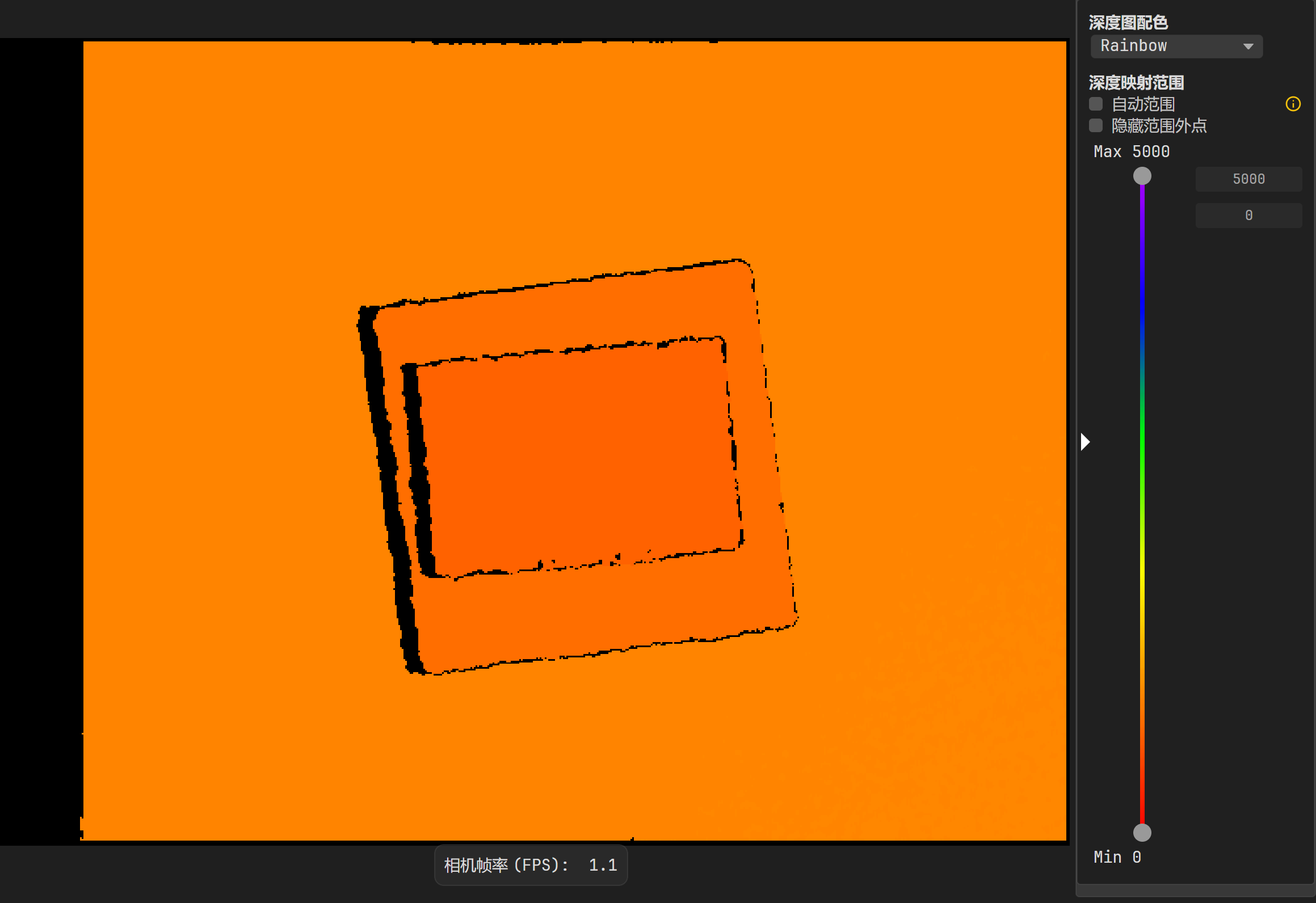
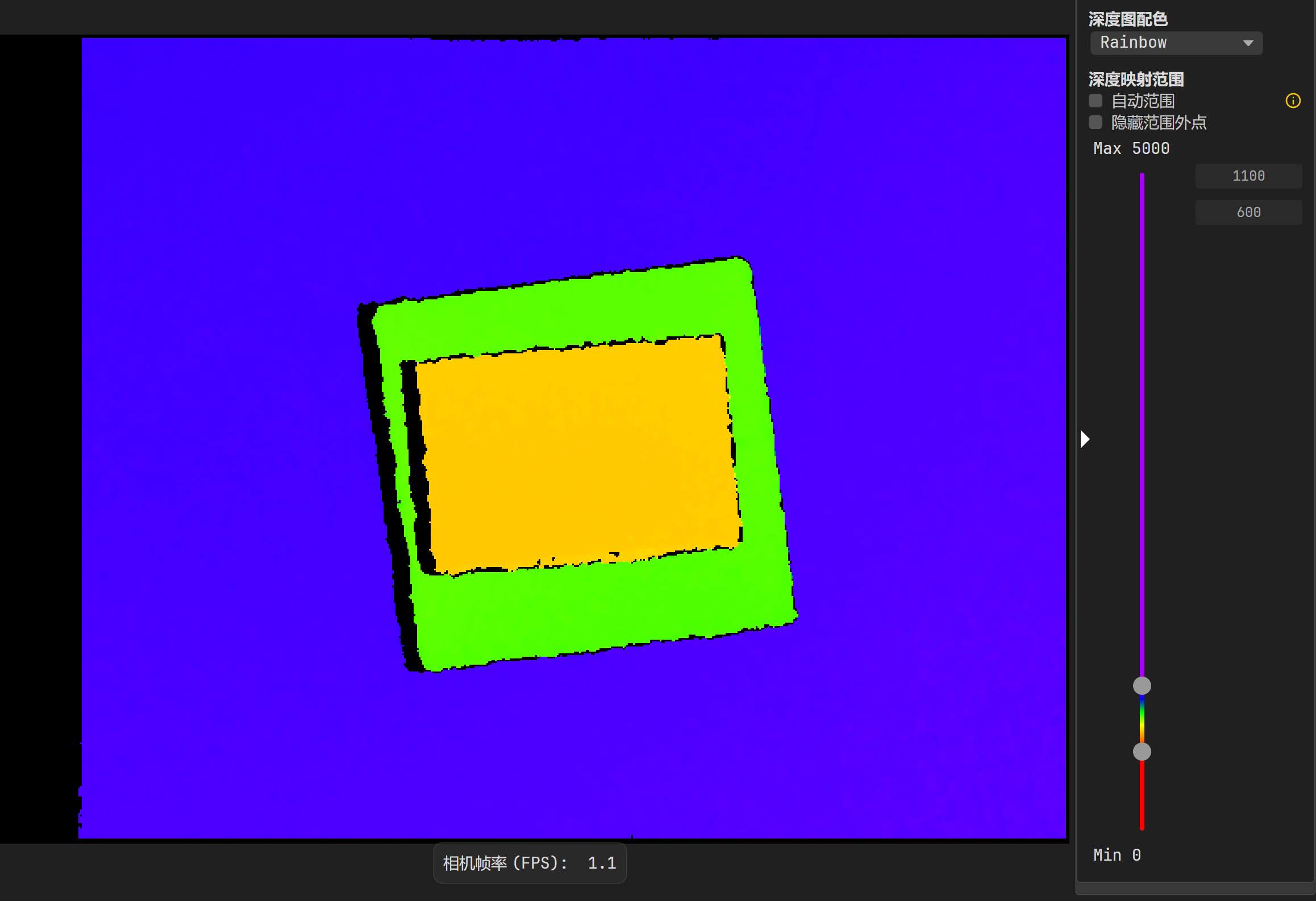
When the depth image display is on, the rendering settings area on the right side of the image capture area opens automatically. Switch between different color schemes under the “Depth Image Color Scheme” option.
The software currently supports the following rendering color schemes: Rainbow, Autumn, Turbo. The rendering effect differs when different schemes are selected.
The depth map supports dynamic rendering range adjustment. When the depth image display is on, the rendering settings area on the right side of the image capture area opens automatically. Set the range in the “Depth Mapping Range” area.
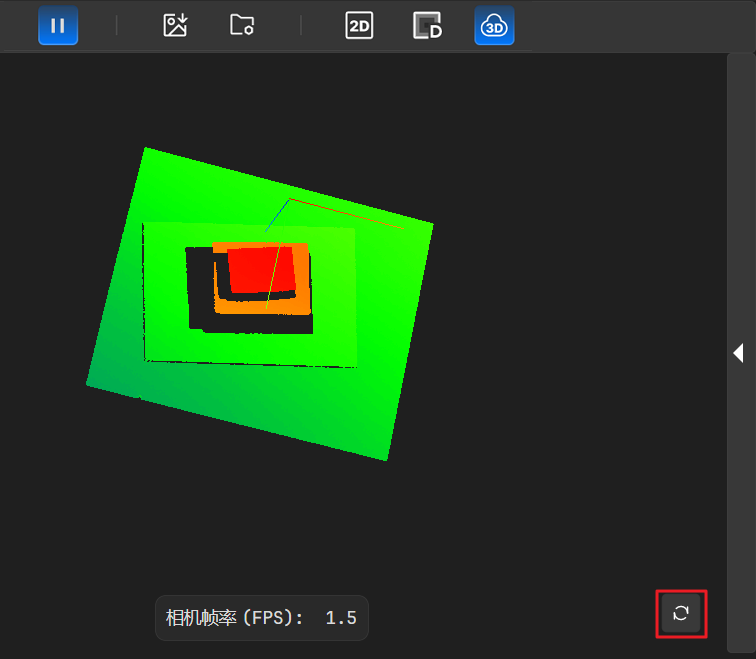
When the point cloud view is displayed, you can perform the following operations:
Zoom: Place the mouse on the point cloud view and scroll the mouse wheel.
Rotate: Hold down the left mouse button and drag.
Pan: Hold down the right mouse button and drag.
Reset: Press the “R” key on the keyboard or click the icon in the lower right corner of the point cloud view to restore the point cloud to its initial position.
Percipio Viewer supports saving image data to the local drive according to the configured save count and capacity limits. Color images, depth images, left images, right images, and point cloud data can be saved simultaneously.
Procedure
Enable the data streams corresponding to the data you want to save.
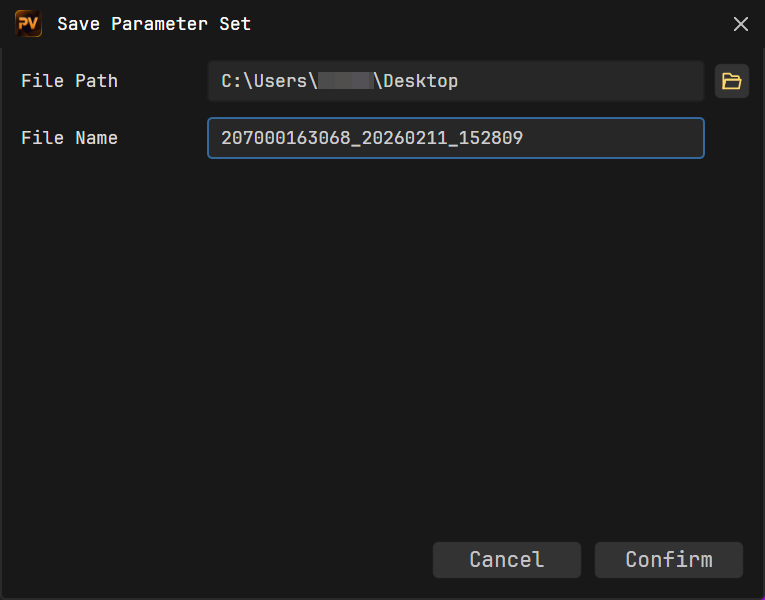
Click to open the Image Save Settings dialog.
In the “Save Path” field, enter a folder path or click to select a directory for storing data. Then, click Confirm. If the specified path does not exist, the system will automatically create the folder.
If no prompt appears, the path setting was successful. Images will be saved to the target path with the naming convention “Type_Date-Timestamp”.
Set the “Continuous Save Count”, i.e., the number of frames to save.
Set the “Capacity Limit” for the selected folder. Setting it to 0 means there is no limit.
Note
The software’s continuous image saving function is subject to two limits: continuous save count and storage capacity limit. Saving will stop immediately when either condition reaches its set value first.
Check the desired storage object(s), supporting single or multiple selections.
The correspondence between Storage Object Options and Saved Data is below:
Checked Storage Object
Saved Data
Save Color Image
Color image (PNG)
Color component intrinsic/extrinsic parameters and distortion matrix (TXT)
Save Depth Image
Raw depth image (PNG)
Rendered depth image (PNG)
Depth component intrinsic/extrinsic parameters and distortion matrix (TXT)
Save Left/Right Image
Left image (PNG)
Right image (PNG)
Left component intrinsic/extrinsic parameters and distortion matrix (TXT)
Right component intrinsic/extrinsic parameters and distortion matrix (TXT)
Save Point Cloud
Point cloud (PLY or PCD, supports color point clouds and setting point cloud units)
Depth component intrinsic/extrinsic parameters and distortion matrix (TXT)
Depth Aligned to Color
Aligned depth image (depth2texture_depth_xxx.png), aligned color image (depth2texture_texture_xxx.png)
Color Aligned to Depth
Aligned color image (texture2depth_texture_xxx.png), aligned depth image (texture2depth_depth_xxx.png)
Point Cloud Format Explanation
This software supports saving point clouds in PLY format or PCD format. You can choose the format based on your downstream point cloud processing needs.
PLY: Binary format, storing spatial coordinates x, y, z, color r, g, b, etc., for each point in the point cloud.
PCD: Binary format, designed for efficient use with the Point Cloud Library (PCL).
Click Confirm.
Click to start image capture (you can also configure image save settings after the camera has started capturing). Then click . The button will highlight, indicating saving is in progress. If the highlighting disappears, it indicates saving has ended.
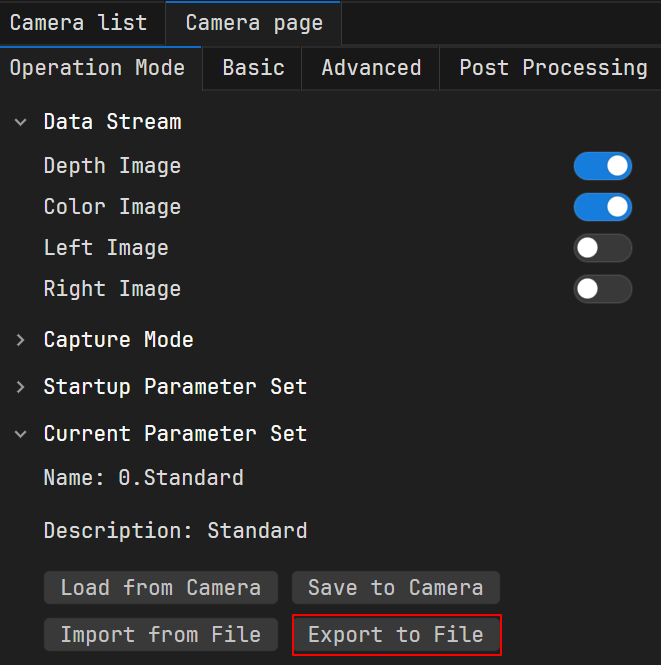
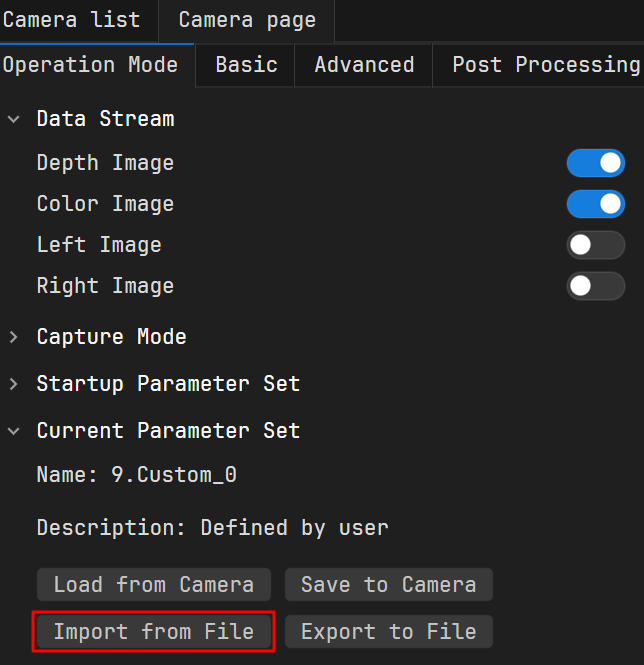
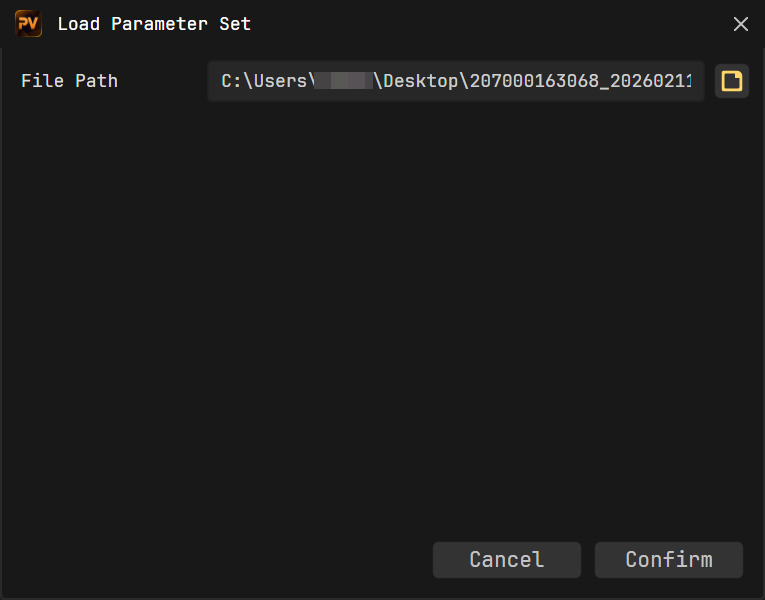
Parameter Sets (User Configurations) let you save customized parameter settings to the camera or to local storage for different scenarios. When scenarios change, loading the corresponding parameter set lets you complete parameter adjustment quickly.
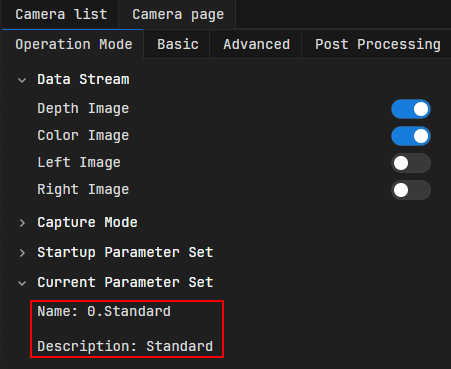
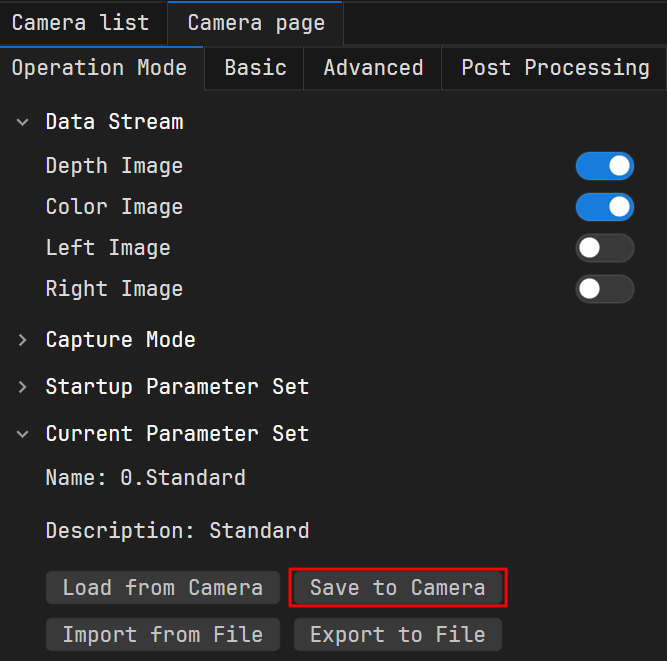
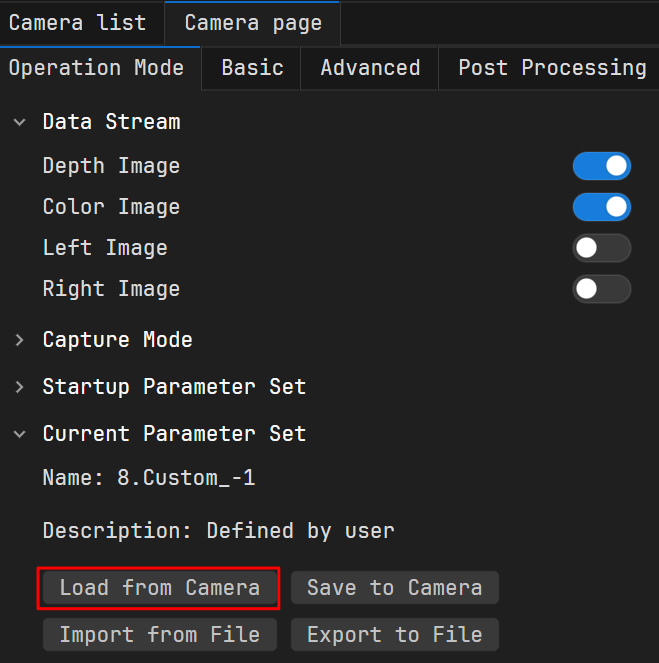
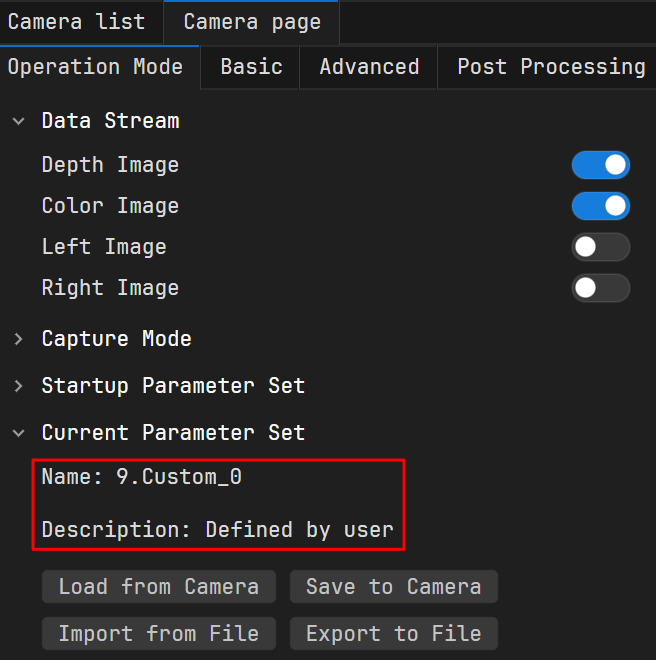
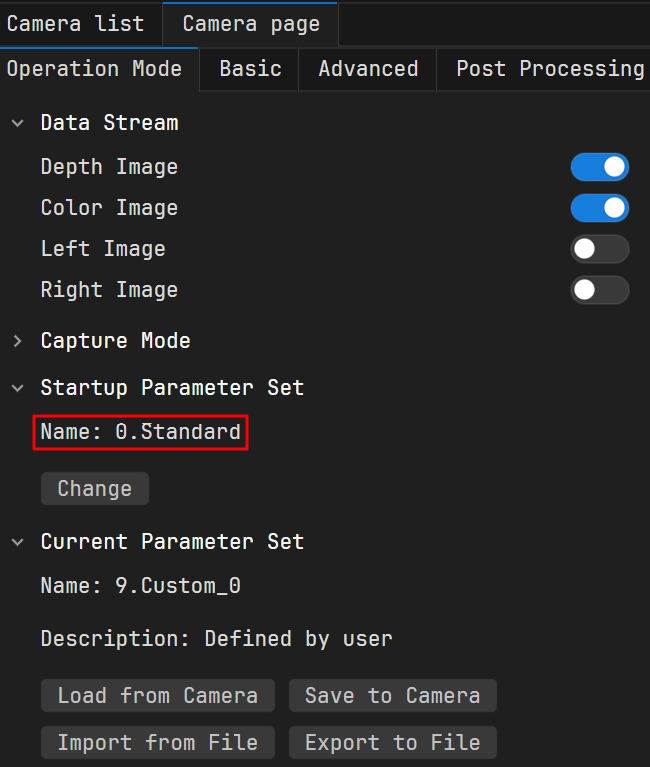
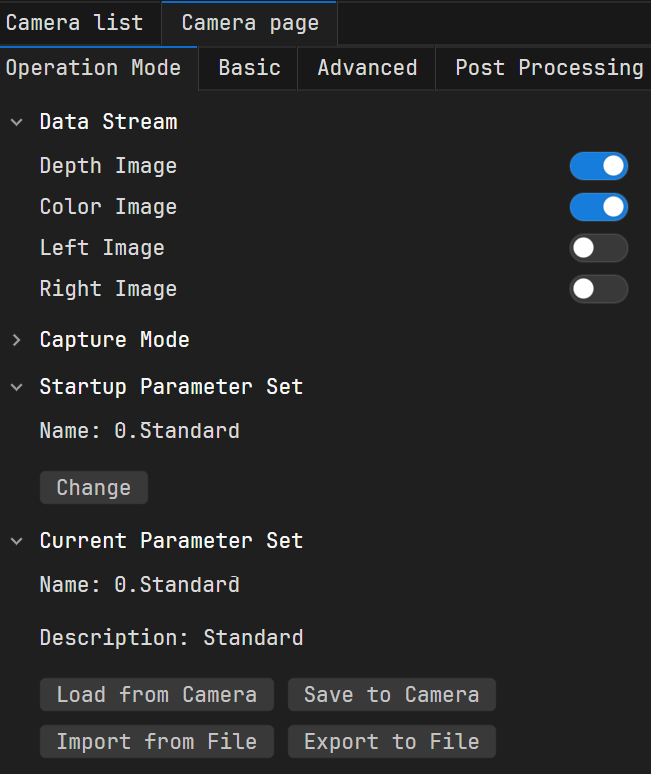
On the Camera Page, the Current Parameter Set field displays the active parameter set information: “Name” shows the currently active parameter set, and “Description” provides details for that parameter set.
As shown below, the current parameter set name is “0.Standard Accuracy”, and the description is “High Accuracy Mode”.
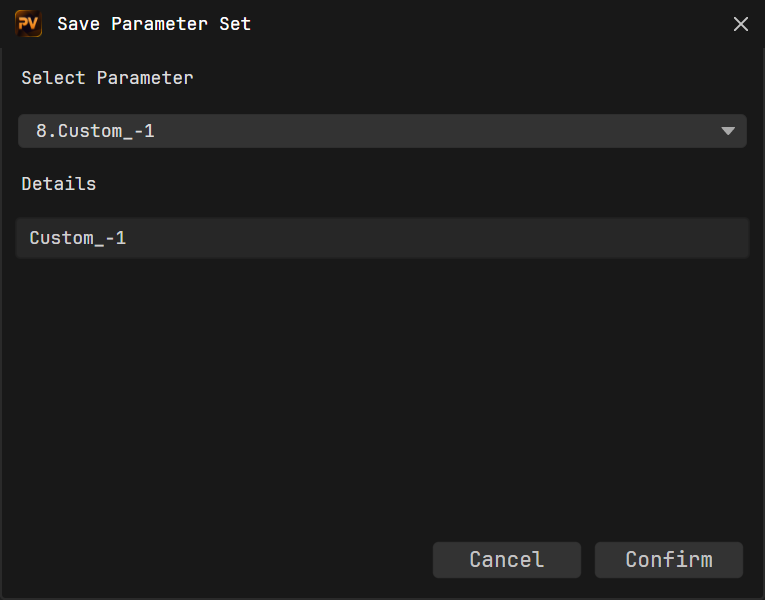
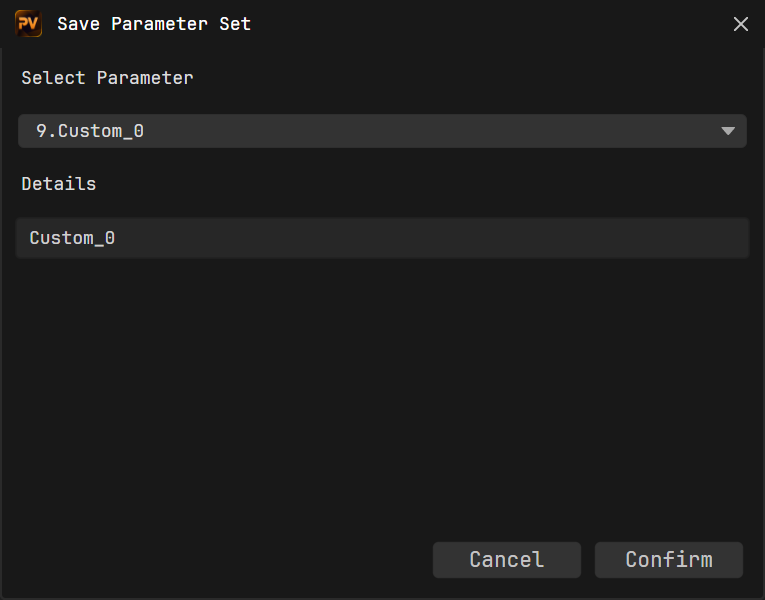
In the popped-up Save Parameter Set dialog, select a parameter set and enter information in the “Details” field if needed. The final saved user set name will be a combination of “Order Number + Details”, such as “8.test”.
Note
If the “Details” field is left blank, the software will automatically use the default name “Default description” as the details for that user set.
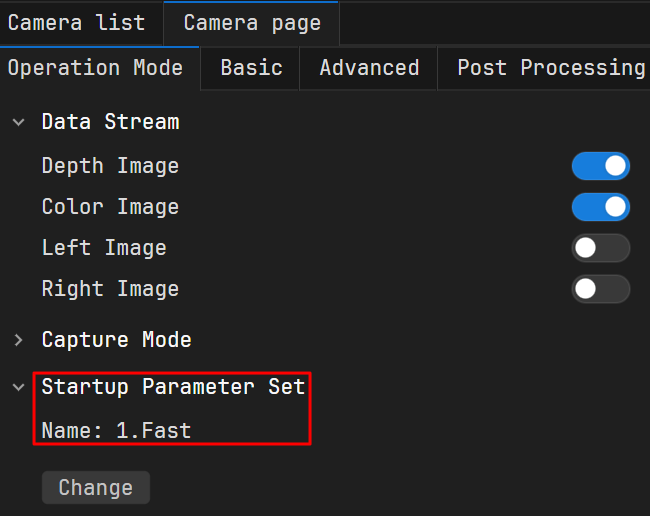
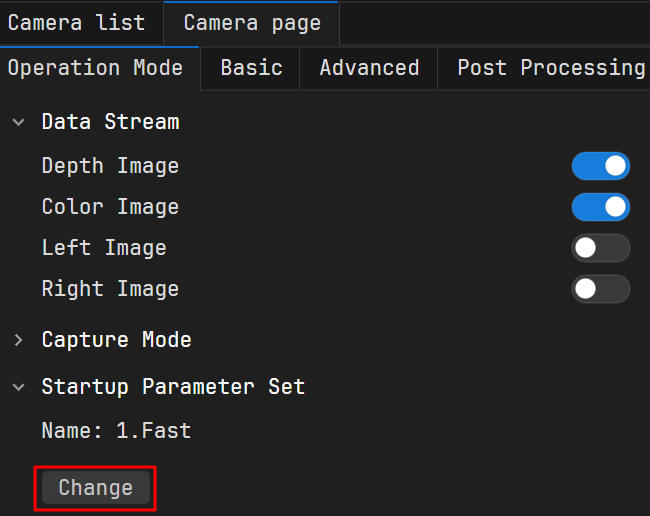
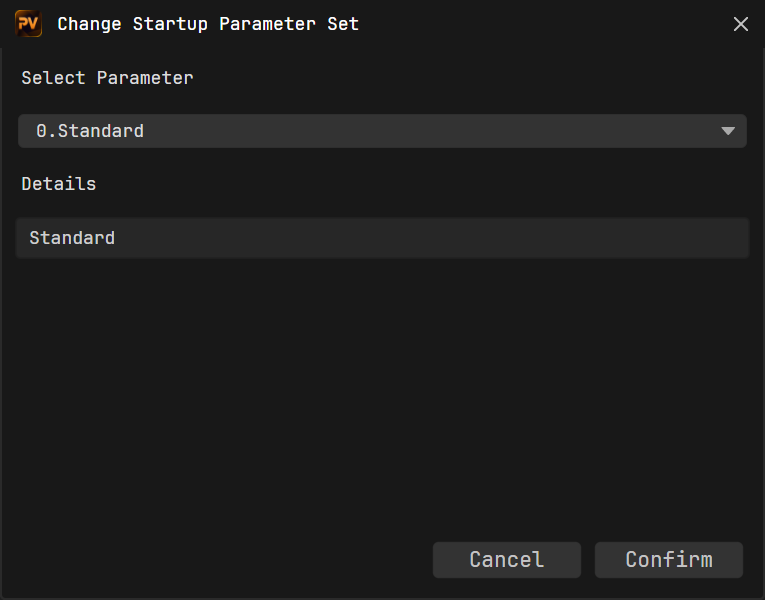
After the camera is powered off and restarted, open it with Viewer. “Current Parameter Set” updates to the configured startup parameter set, and the camera parameters synchronize with the new values.
 to refresh the camera list.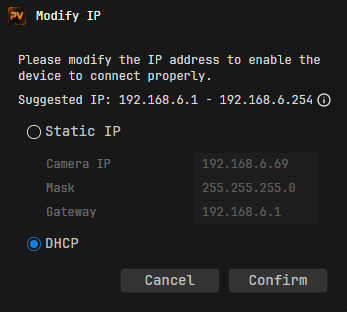
 to connect to the camera.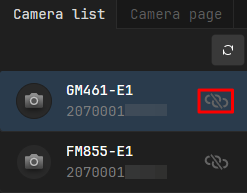
 at the top of the page to disconnect.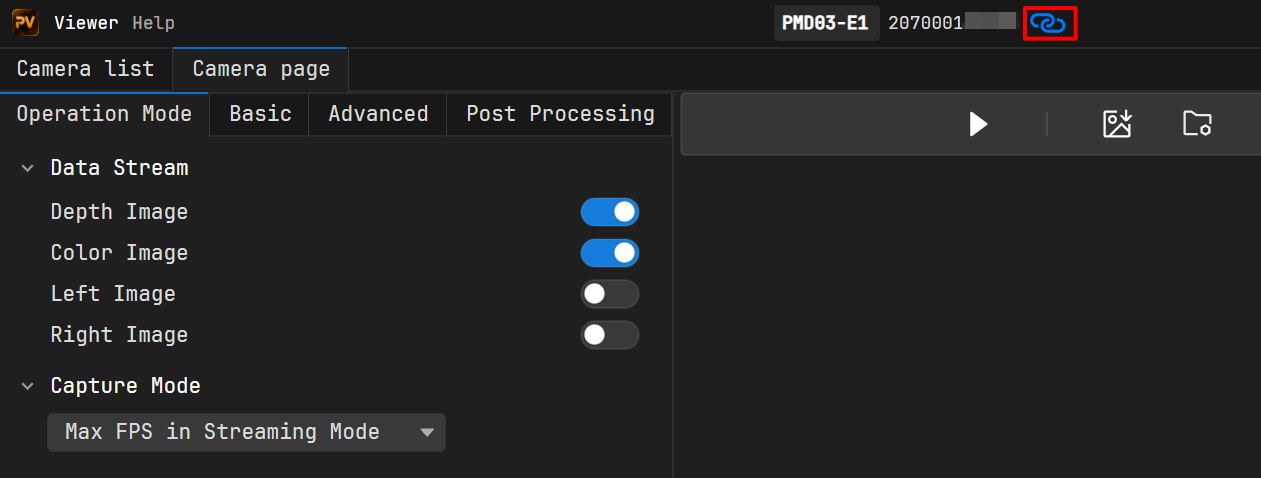
 in the image capture area to start capturing. Then click
  and
and  to turn the color and depth views on/off.
 will appear next to it. Then click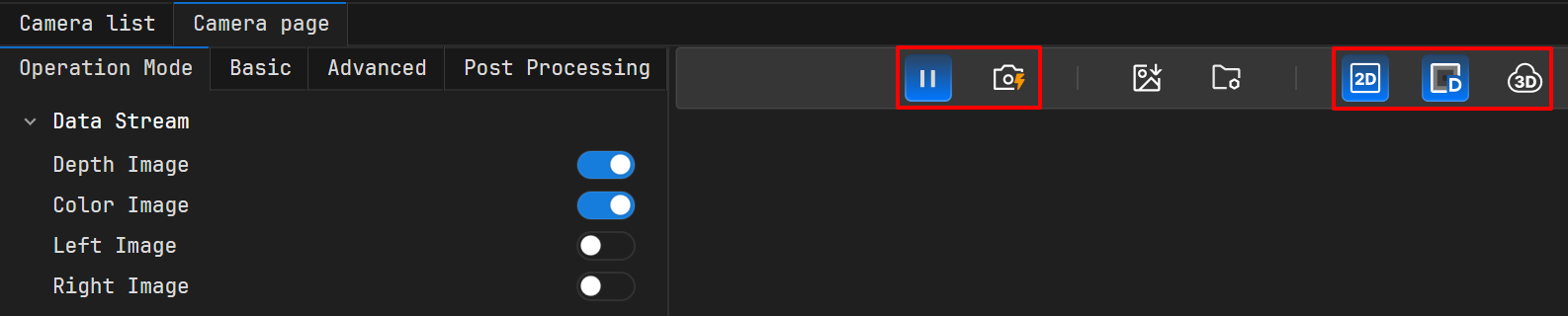
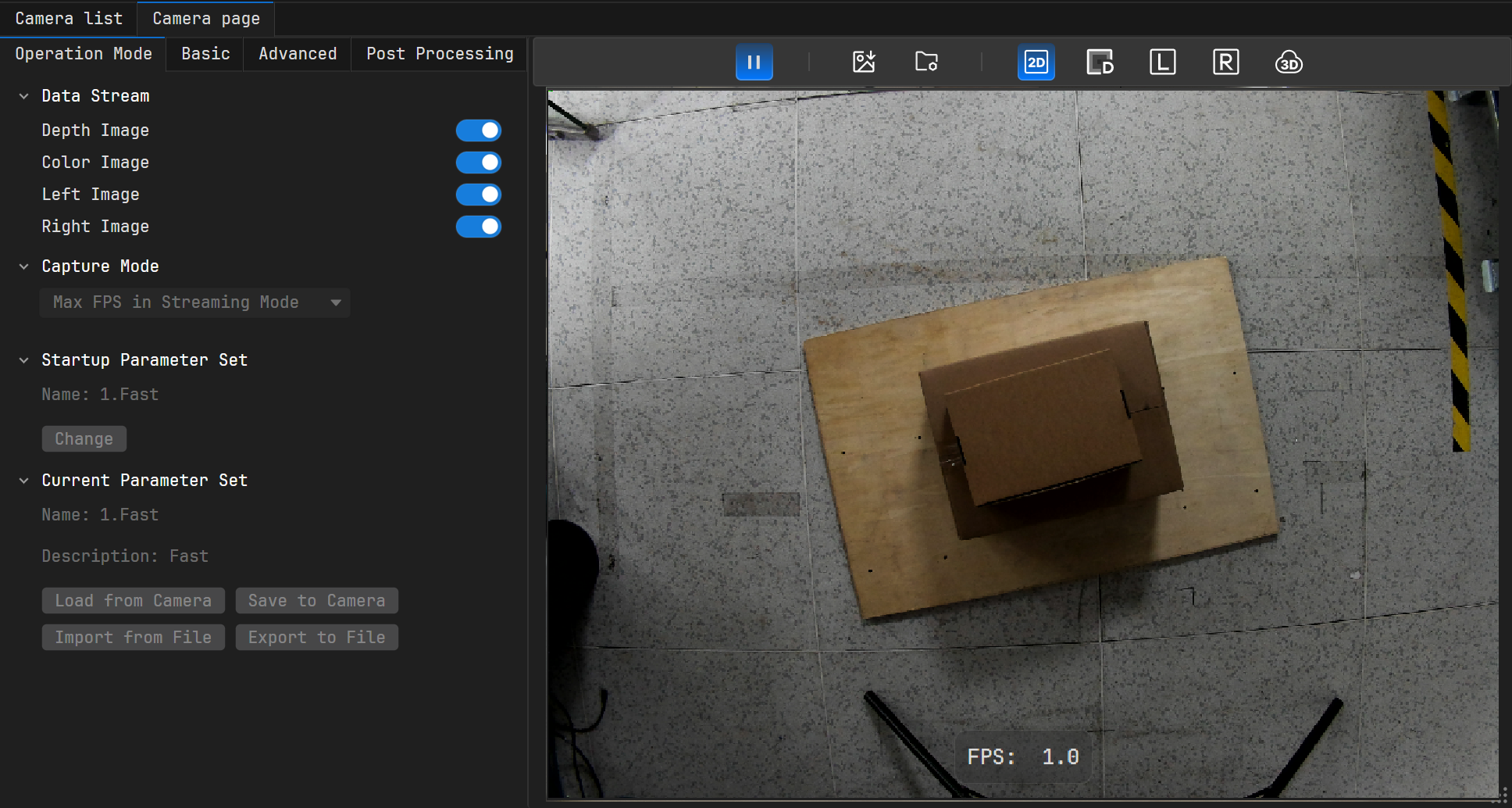
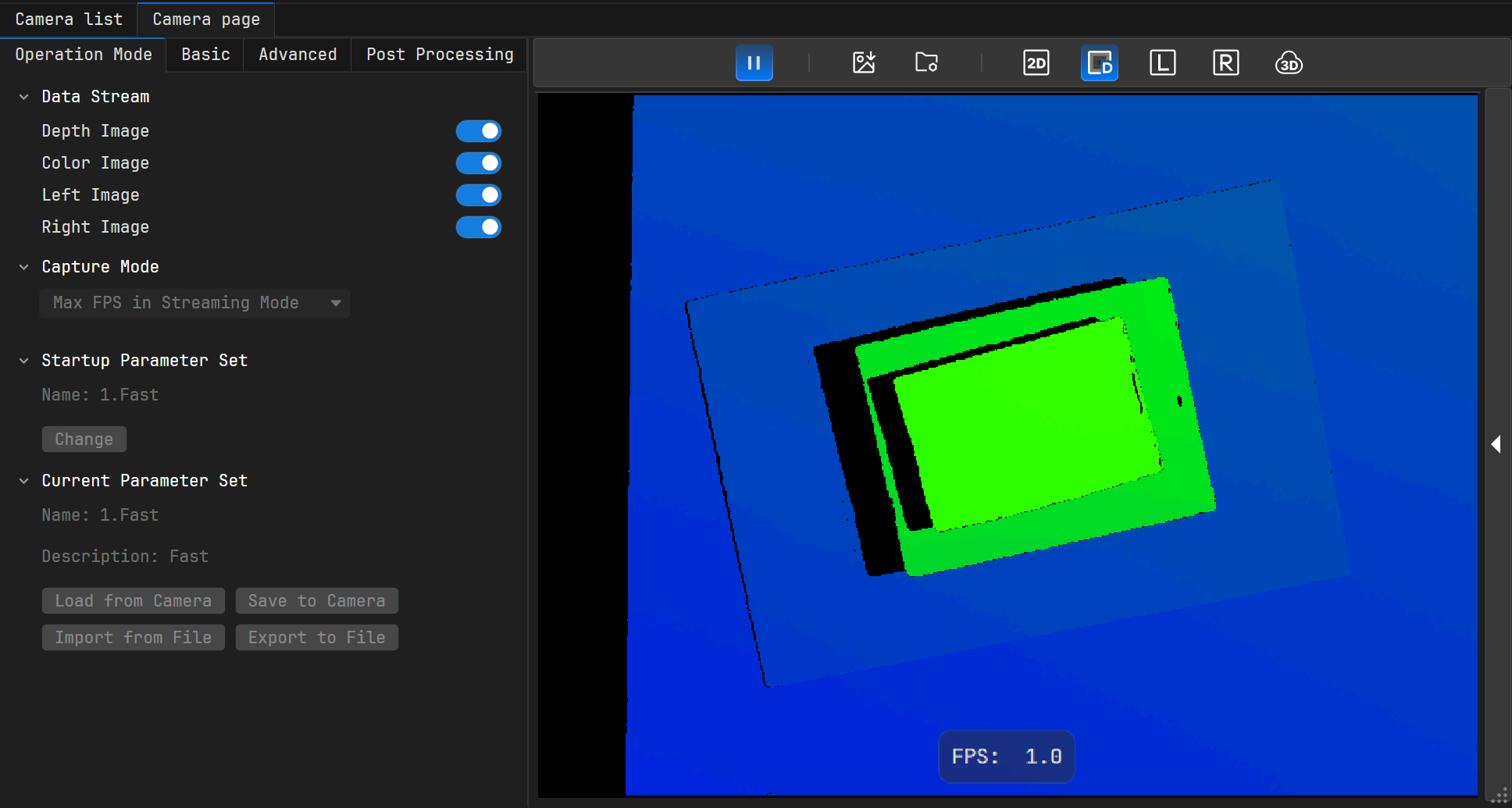
 above the image capture area to view the left image. Click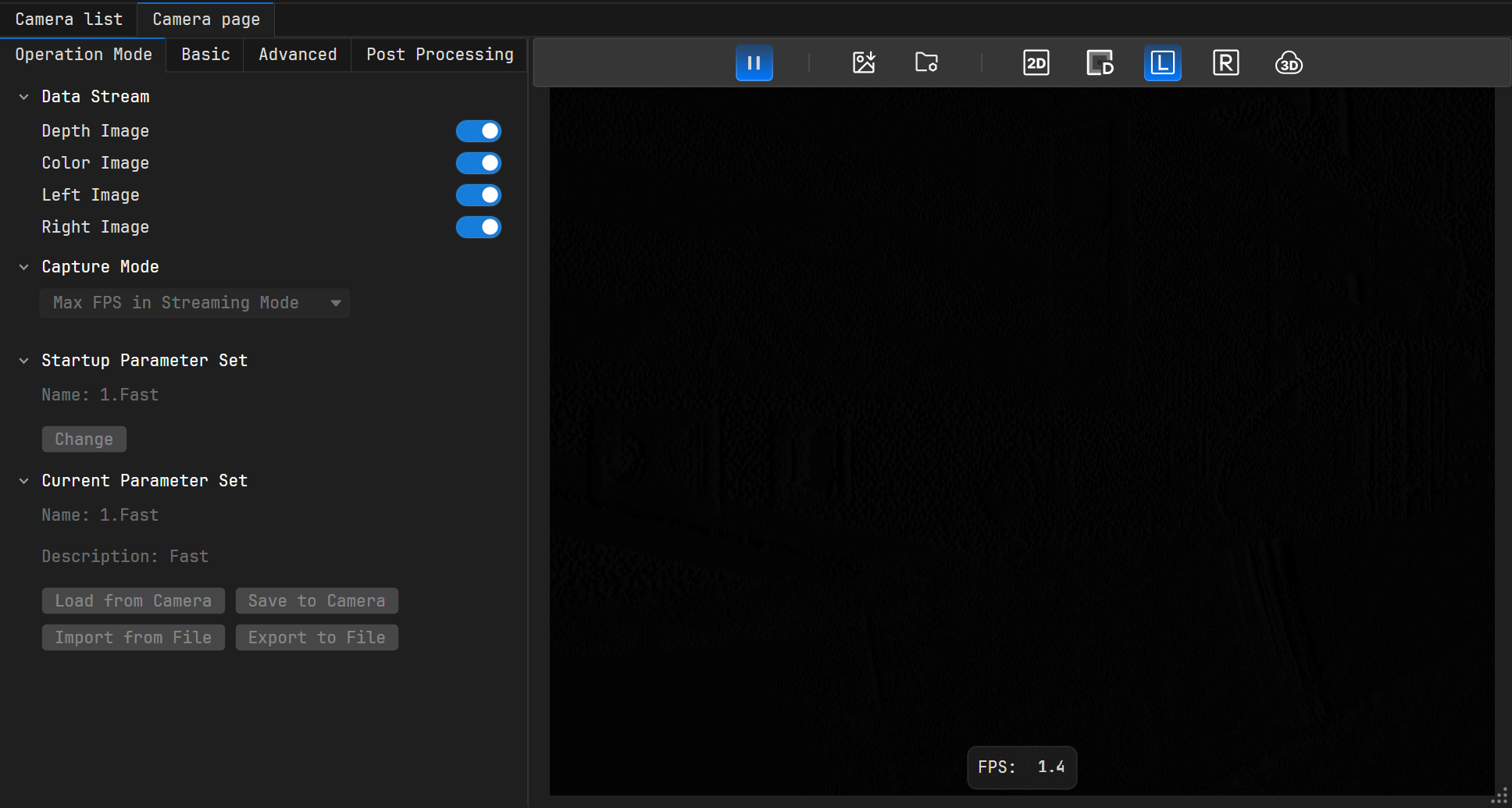
 above the image capture area to view the right image. Click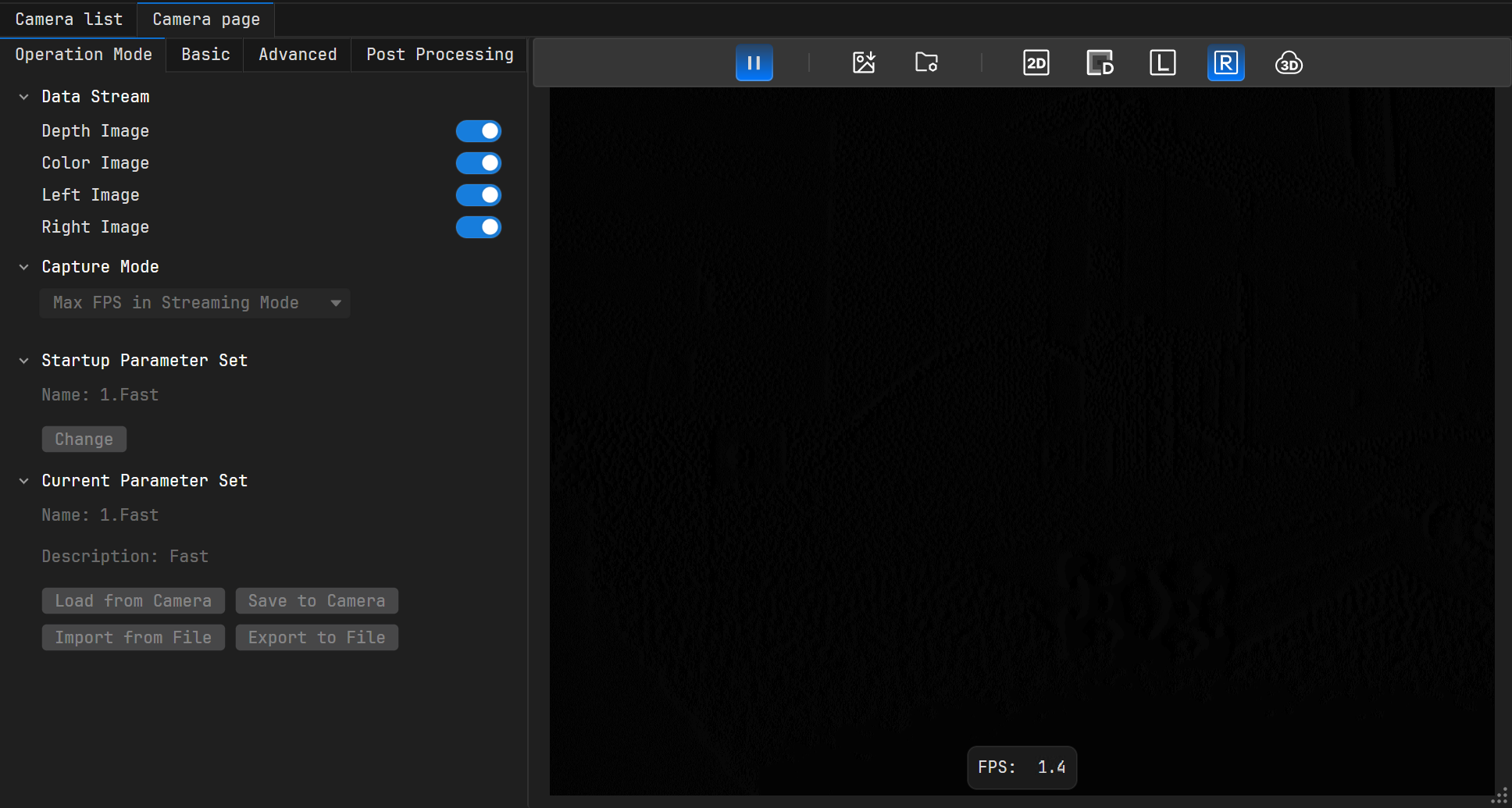
 above the image capture area to view the point cloud.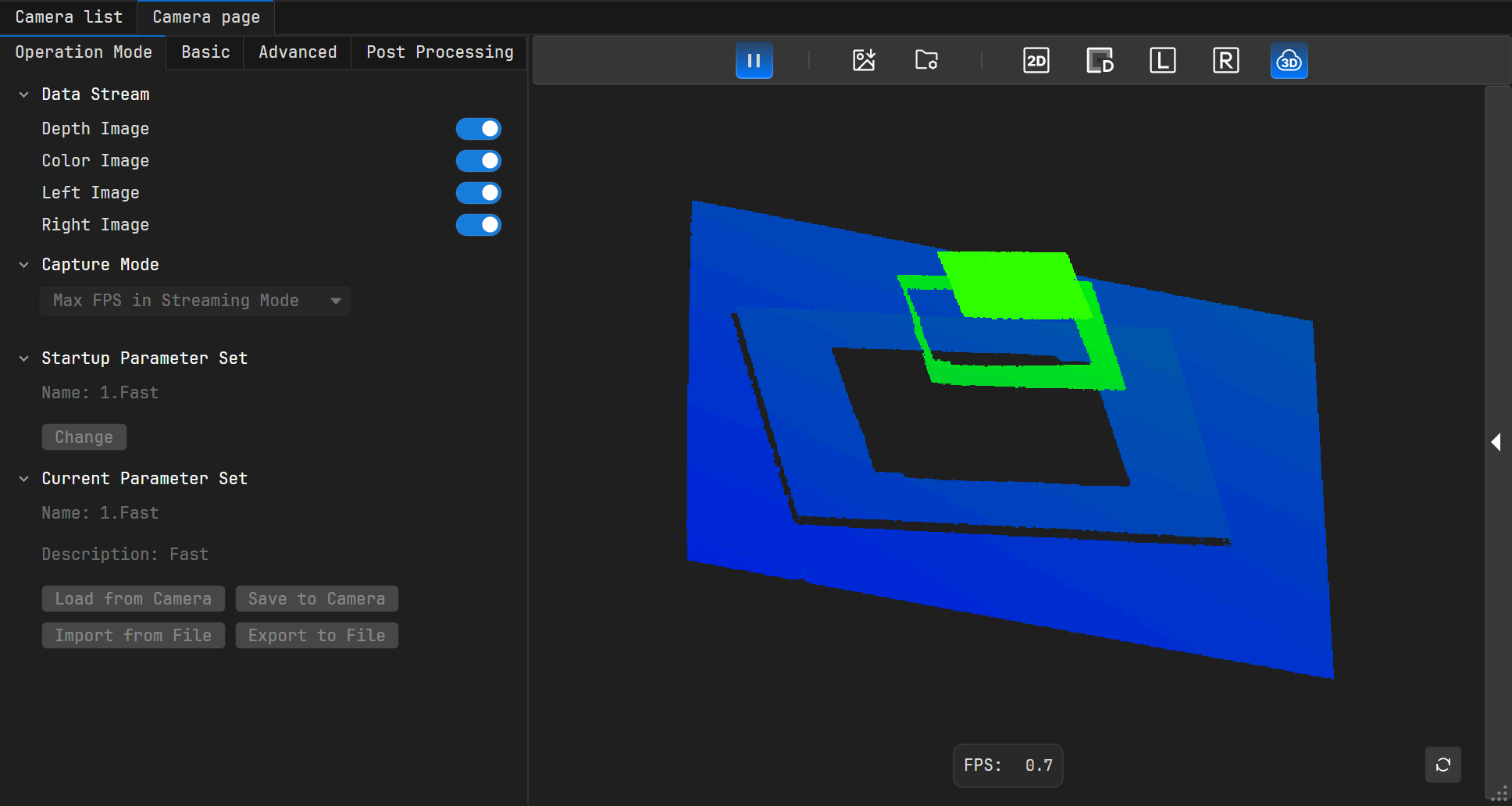
 above the image capture area to open the image registration settings panel. The panel contains the following two parameters: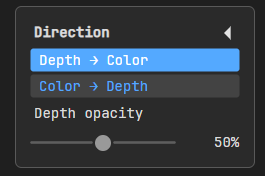
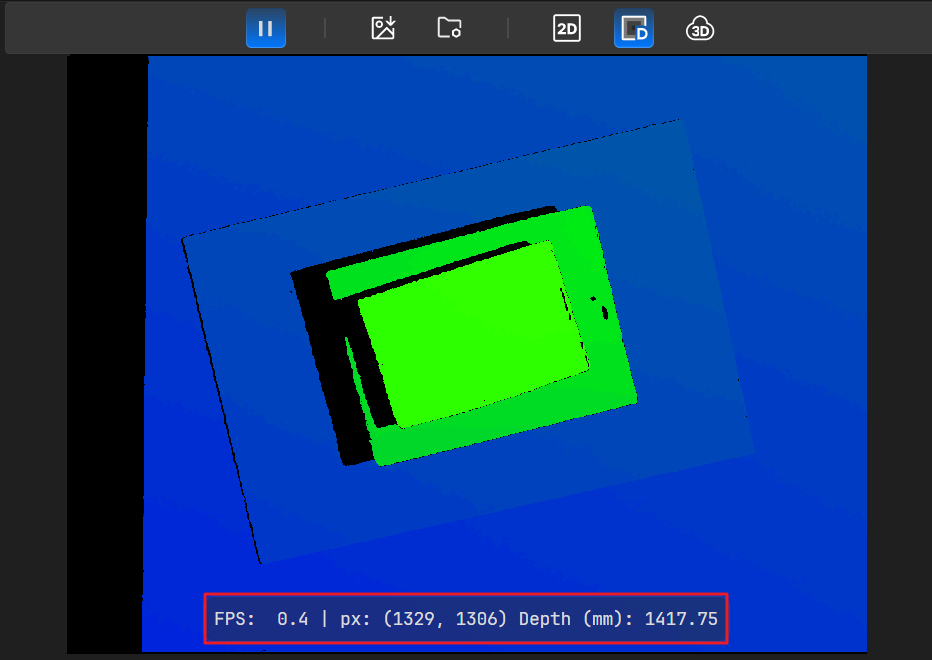
 to open the Image Save Settings dialog.
 to select a directory for storing data. Then, click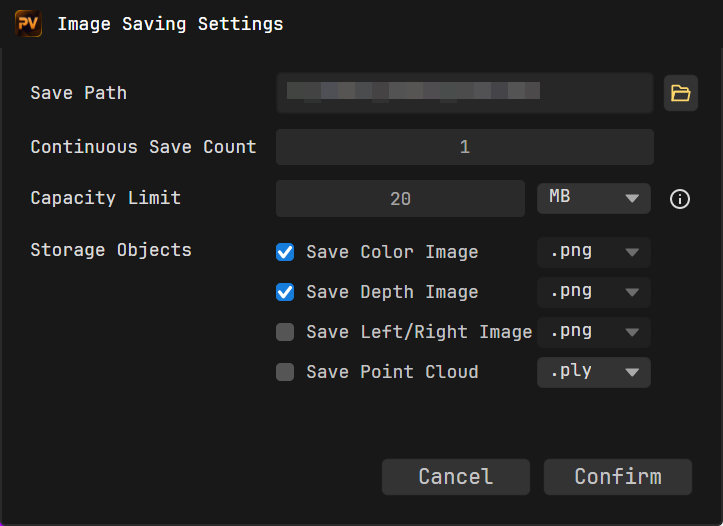
 . The button will highlight, indicating saving is in progress. If the highlighting disappears, it indicates saving has ended.