C# (Windows)

Sample Program Overview

The C# sample programs are located at {VCAMERA_SDK_INSTALLATION_PATH}/Percipio_SDK/API/csharp/net48/example/PercipioSdkExample and include:

  • DepthToPointCloud/Program.cs: Implements alignment of depth images to point cloud images.

  • DepthToColorRegistration/Program.cs: Implements pixel-level coordinate alignment between depth images and color images.

  • SoftTrigger/Program.cs: Configures the camera to operate in software trigger mode. The camera captures depth images after receiving a software trigger command.

  • DumpAllFeatures/Program.cs: Lists all features supported by the current camera.

  • ReadWriteFeatures/Program.cs: Demonstrates reading and writing of the camera features.

  • UserSetSelector/Program.cs: Selects a camera user set.

  • FetchFrameContinuous/Program.cs: Configures the camera to operate in continuous capture mode and capture depth images.

  • ListDevices/Program.cs: Lists all cameras connected to the computer.

Install Dependencies

Install Visual Studio

Note

The recommended Visual Studio version is 2022. Other versions are not tested and the compatibility is not guaranteed.

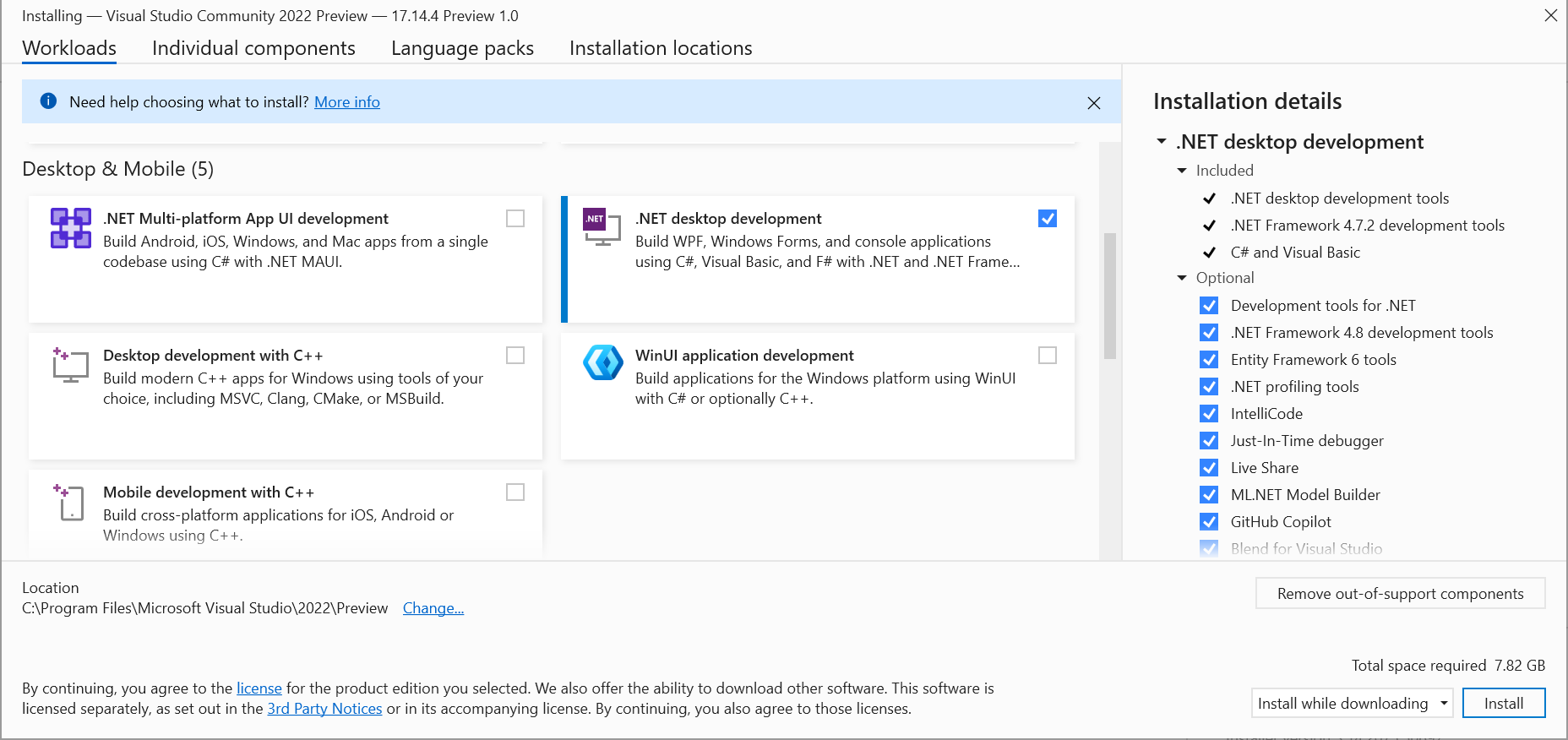
Download and install Visual Studio. Important: During installation, select the .NET desktop development workload under the Desktop and Mobile Applications category.

Install Visual Studio

Install Visual Studio

Compile Sample Programs

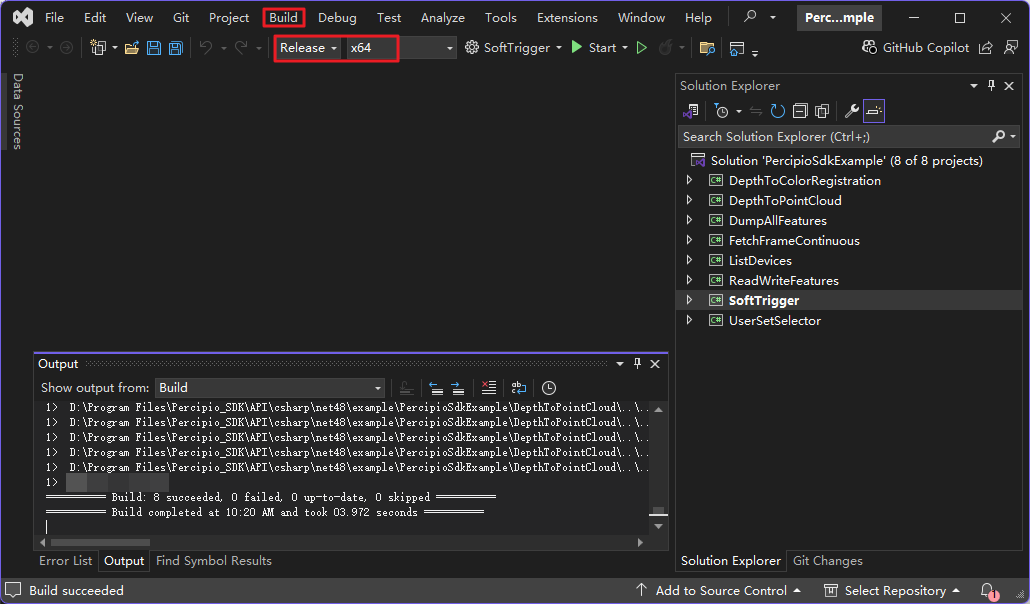
  1. Double-click the PercipioSdkExample.sln file located at Percipio_SDK/API/csharp/net48/example/PercipioSdkExample to open the project in Visual Studio.

  2. Select the “Release x64” configuration from the dropdown menu, then navigate to Build > Build Solution.

    Build Solution in Visual Studio

Execution

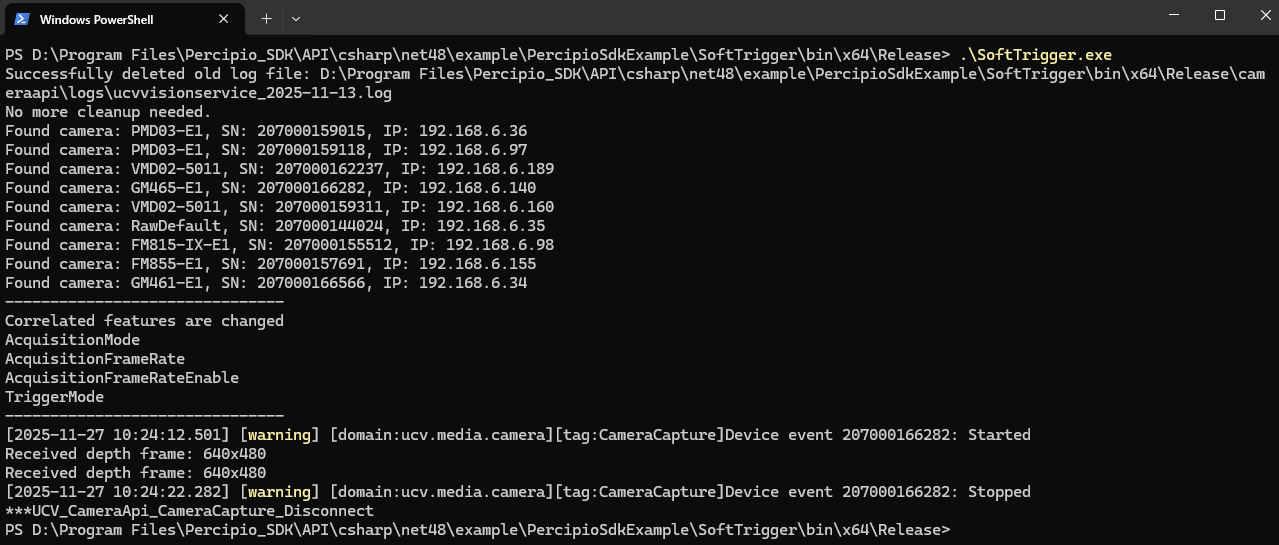
  1. Navigate to the {SDK_INSTALLATION_DIRECTORY}/Percipio_SDK/API/csharp/net48/example/PercipioSdkExample/SampleOut/x64/Release directory.

  2. Open a terminal and execute the compiled .exe file.

Execute C# Sample Program