Python (Windows)
Sample Program Overview
The Python sample programs are located at VcameraSDK-X.X.X/python/samples and include:
DepthToPointCloud.py: Converts depth images to point clouds in real time during continuous capture.DepthTextureRegistration.py: Aligns the output depth image with the color image in software trigger mode.DumpAllFeatures.py: Lists all features supported by the camera.DumpDeviceInfo.py: Lists camera information.FetchFrame.py: Captures depth images in continuous capture mode.GetVersion.py: Displays the current SDK version.ListDevices.py: Lists all cameras connected to the computer.LoadFeaturesFromFile.py: Loads camera feature settings from a specified JSON file and applies them to the camera.LoadFeaturesFromStorage.py: Loads feature settings from the camera Storage area. This sample applies only to non-GenICam cameras.LogConfig.py: Configures the Vcamera SDK logging system.ReadCalibInfo.py: Reads calibration parameters for a specified sensor.ReadWriteFeatures.py: Demonstrates how to inspect feature types, names, values, ranges, and how to set them.SaveFeaturesToFile.py: Saves updated feature settings to a specified JSON file.SaveFeaturesToStorage.py: Saves feature settings to the device Storage area. This sample applies only to non-GenICam cameras.SetIpAddress.py: Sets a static IP address.SoftTrigger.py: Captures depth images after sending a software trigger command.UserSetSelector.py: Selects a user set. This sample applies only to GenICam cameras.ReconnectWhenOffline.py: Automatically reconnects the camera after disconnection and resumes image acquisition.
Install Dependencies
Dependency 1 — Python
Note
Python 3.8 or later is required. Version 3.8 is recommended (it has passed full compatibility testing; other versions have not been fully tested and compatibility is not guaranteed).
Download the corresponding version from the Python Percipio website.
Double-click the installer, check the box for “Add Python to PATH”, and click “Install Now”.
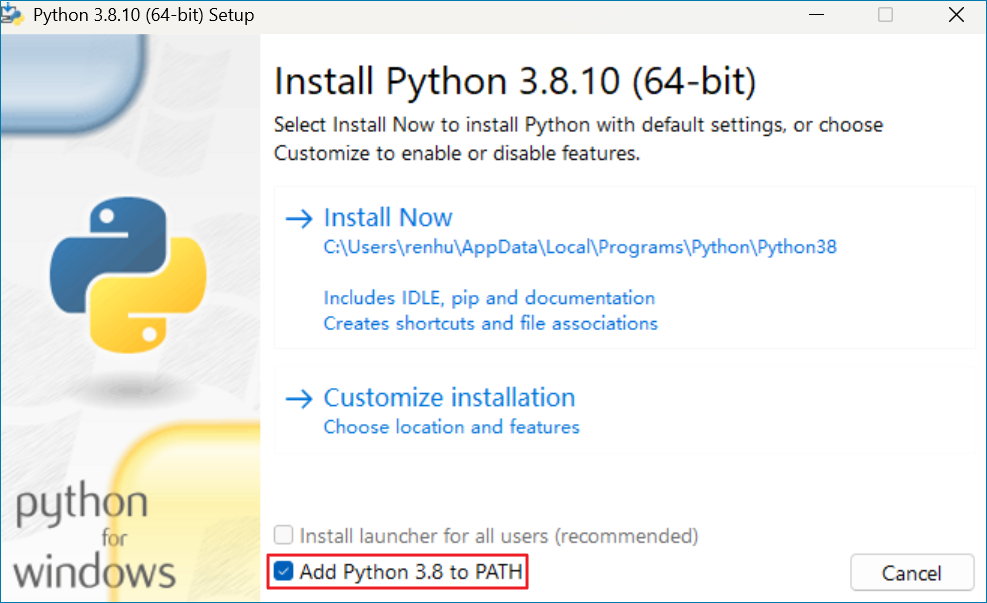
Python Installation
Dependency 2 — USB Driver (Optional)
If you use a USB camera, complete Set Up USB Camera Environment before proceeding.
Build the Wheel Package
Attention
Do not change the relative positions of the VcameraSDK-X.X.X/python directory and the VcameraSDK-X.X.X/cpp directory.
Open a terminal in the VcameraSDK-X.X.X/python directory and run the following command:
python build_wheel.py
After the build is complete, the Wheel package is located in the VcameraSDK-X.X.X/python/dist directory.
Install the Wheel Package
In the
VcameraSDK-X.X.X/python/distdirectory, find the built Wheel package.Open a terminal and enter this directory, then run the following command to install the Wheel package:
pip install <wheel_file_name>.whl
For example:
pip install vcamera_python-26.1.1-cp313-cp313-win_amd64.whl
Note
If you see output similar to the following in the terminal:
vcamera-python is already installed with the same version as the provided wheel. Use –force-reinstall to force an installation of the wheel.
It means that the same version of the Wheel package is already installed on the system, and no reinstallation is needed. If you need to force a reinstallation, add the
--force-reinstallparameter to the above command:pip install --force-reinstall <wheel_file_name>.whl
Verify the Installation
Run the following command in the terminal to verify whether the installation is successful:
python -c "import vcamera as vcam; print(vcam.GetVersionString())"
Run the Sample Programs
After installation, open a terminal in the VcameraSDK-X.X.X/python/samples directory and run the sample programs:
python samples/ListDevices.py
python samples/FetchFrame.py
Uninstall
pip uninstall vcamera-python