Download & Install & Uninstall Vcamera SDK
Windows
This section details the procedures for downloading, installing, and uninstalling the Vcamera SDK on Windows. It also explains the installed directory structure and how to use the precompiled demo applications.
Download the SDK
Click the download link to get the latest Vcamera SDK installer package.
Install the SDK
After extracting
Vcamera_SDK.zip, double-clickPercipio_SDK-x.x.x-win64.exe.Select the language for stepup.
Note
If a previous version of the SDK is detected, the following dialog will appear, prompting you to uninstall it. Select Yes to automatically uninstall the old version and proceed with installation, or No to cancel.
To prevent data loss, it is recommended to back up any important files from the old SDK directory before proceeding.
Select “I accept the agreement” and click Next.
Choose the installation path and click Next.
Note
To avoid system permission restrictions, do not install the SDK on the C: drive (the system drive).
Select the components to install. To skip installing Percipio Viewer (the image viewer software developed based on the Vcamera SDK), uncheck the “Percipio Viewer” option.
Choose a Start Menu folder for the application shortcuts, then click Next. To skip creating shortcuts, check “Don’t create a Start Menu folder” and click Next.
Click Install.
After installation is complete, click Finish.
Directory Structure
After installing the Vcamera SDK, navigate to {Vcamera SDK Installation Directory}/Percipio_SDK/API. The directory structure is as follows:
Percipio_SDK/API/
├── 📁 cpp/
│ ├── 📁 Debug/ # Debug runtime libraries + precompiled demos
│ ├── 📁 example/ # C++ demo source code
│ ├── 📁 include/sdk/ # All SDK header files
│ └── 📁 Release/ # Release runtime libraries + precompiled demos
├── 📁 csharp/ # C# related files, including demos and runtime.
├── 📁 doc/ # Documentation directory
│ └── feature_list.txt # Feature list. Use the names in this file when reading/setting features.
└── 📁 python/ # Python related files, including demos and runtime.
Run Precompiled Demos
If you prefer not to compile the demo programs yourself, the C++ SDK provides precompiled demo applications in both Debug and Release configurations.
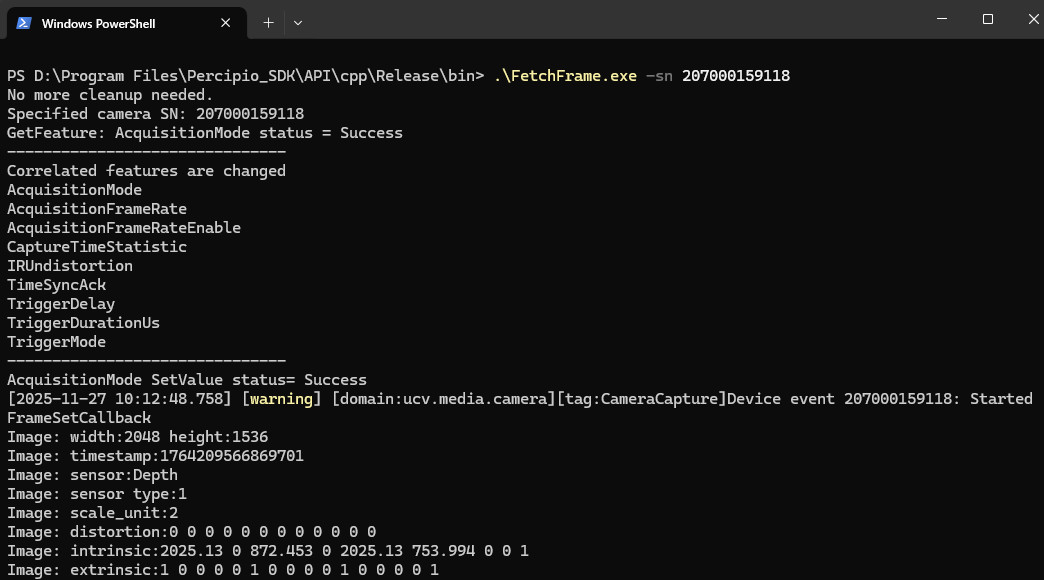
For example, to run a Release version demo, navigate to {Vcamera SDK Installation Directory}\Percipio_SDK\API\cpp\Release, open a terminal, and execute the program.
Uninstall the SDK
Method 1: Go to Settings > Apps > Installed apps, search for “percipio”, locate “Percipio_SDK”, and uninstall it.
Method 2: Open Control Panel > Programs > Programs and Features, search for “percipio”, find “Percipio_SDK”, and uninstall it.
Note
Uninstalling the Vcamera SDK will delete all files created by the installer. Please back up any important files beforehand to avoid irreversible data loss.
Linux
This section details the procedures for downloading and installing the Vcamera SDK on Linux systems. It also explains the installed directory structure and how to use the precompiled demo applications.
Supported Environments: Ubuntu 20.04, Ubuntu 22.04, Ubuntu 24.10
Download the SDK
Click the download link to get the latest Vcamera SDK package.
Install the SDK
Install the required USB dependency.
sudo apt install libusb-1.0-0-dev
Install the Vcamera SDK package.
sudo dpkg -i Vcamera_SDK-Linux.deb
Note
The Vcamera SDK is installed by default to
/opt/Percipio_SDK.
Directory Structure
After installation, navigate to /opt/Percipio_SDK/API to view the directory contents.
cd /opt/Percipio_SDK/API
ls
Percipio_SDK/API/
├── 📁 cpp/
│ ├── 📁 Debug/ # Debug runtime libraries + precompiled demos
│ ├── 📁 example/ # C++ demo source code
│ ├── 📁 include/sdk/ # All SDK header files
│ └── 📁 Release/ # Release runtime libraries + precompiled demos
├── 📁 doc/ # Documentation directory
│ └── feature_list.txt # Feature list. Use the names in this file when reading/setting features.
└── 📁 python/ # Python related files, including demos and runtime.
Run Precompiled Demos
If you prefer not to compile the demo programs yourself, the C++ SDK provides precompiled demo applications in both Debug and Release configurations.
For example, to run a Release version demo, navigate to /opt/Percipio_SDK/API/cpp/Release/bin and execute the program.
cd /opt/Percipio_SDK/API/cpp/Release/bin
./FetchFrame -sn <camera_serial_number>