Python (Linux)
Sample Program Overview
The Python sample programs are located at VcameraSDK-X.X.X/python/samples and include:
DepthToPointCloud.py: Converts depth images to point clouds in real time during continuous capture.DepthTextureRegistration.py: Aligns the output depth image with the color image in software trigger mode.DumpAllFeatures.py: Lists all features supported by the camera.DumpDeviceInfo.py: Lists camera information.FetchFrame.py: Captures depth images in continuous capture mode.GetVersion.py: Displays the current SDK version.ListDevices.py: Lists all cameras connected to the computer.LoadFeaturesFromFile.py: Loads camera feature settings from a specified JSON file and applies them to the camera.LoadFeaturesFromStorage.py: Loads feature settings from the camera Storage area. This sample applies only to non-GenICam cameras.LogConfig.py: Configures the Vcamera SDK logging system.ReadCalibInfo.py: Reads calibration parameters for a specified sensor.ReadWriteFeatures.py: Demonstrates how to inspect feature types, names, values, ranges, and how to set them.SaveFeaturesToFile.py: Saves updated feature settings to a specified JSON file.SaveFeaturesToStorage.py: Saves feature settings to the device Storage area. This sample applies only to non-GenICam cameras.SetIpAddress.py: Sets a static IP address.SoftTrigger.py: Captures depth images after sending a software trigger command.UserSetSelector.py: Selects a user set. This sample applies only to GenICam cameras.ReconnectWhenOffline.py: Automatically reconnects the camera after disconnection and resumes image acquisition.
Install Dependencies
Dependency 1 — Python
Note
Python 3.8 or later is required. Version 3.8 is recommended (it has passed full compatibility testing; other versions have not been fully tested and compatibility is not guaranteed).
sudo apt install python3
Dependency 2 — USB Driver Permissions (Optional)
If you need to use a USB camera, complete the Set Up USB Camera Environment steps first.
Build the Wheel Package
Attention
Do not change the relative path between the VcameraSDK-X.X.X/python directory and the VcameraSDK-X.X.X/cpp directory.
Open a terminal in the VcameraSDK-X.X.X/python directory and follow the steps below:
Run the build script
python build_wheel.py
Judge based on the network speed
If the network speed is ≥ 200 KB/s: the script will complete the build directly without any additional action.
If the network speed is < 200 KB/s: the script will ask whether to configure a domestic mirror source. Enter Y to confirm, then select a mirror source as prompted (for example, enter 1 to select Alibaba Cloud).
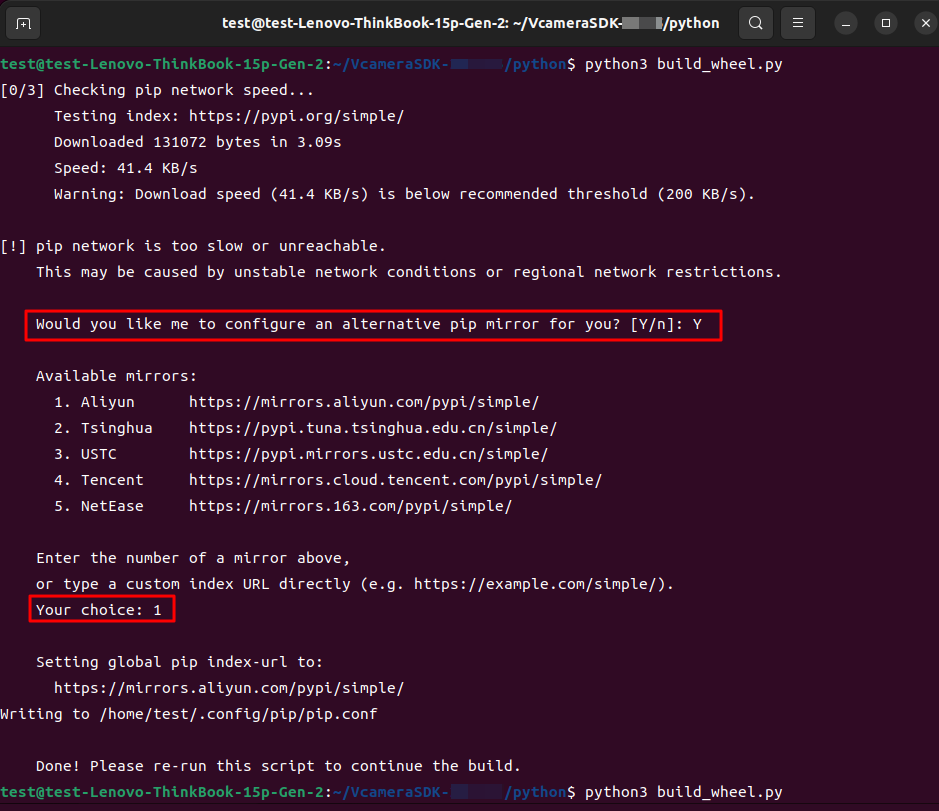
After the configuration, rerun the script to complete the build.
python build_wheel.py
After the build completes, the Wheel package is located in the
VcameraSDK-X.X.X/python/distdirectory.
Install the Wheel Package
In the
VcameraSDK-X.X.X/python/distdirectory, find the built Wheel package.Open a terminal and enter this directory, then run the following command to install the Wheel package:
pip install <wheel_file_name>.whl
For example:
pip install vcamera_python-26.1.5-cp38-cp38-linux_x86_64.whl
Note
If you see output similar to the following in the terminal:
vcamera-python is already installed with the same version as the provided wheel. Use –force-reinstall to force an installation of the wheel.
It means that the same version of the Wheel package is already installed on the system, and no reinstallation is needed. If you need to force a reinstallation, add the
--force-reinstallparameter to the above command:pip install --force-reinstall <wheel_file_name>.whl
Verify Installation
python -c "import vcamera as vcam; print(vcam.GetVersionString())"
Run Sample Programs
After installation, open a terminal in VcameraSDK-X.X.X/python/samples and run the sample programs.
python samples/ListDevices.py
python samples/FetchFrame.py
Uninstall
pip uninstall vcamera-python