Set Parameter Recipes
Context
A parameter recipe is a set of parameter settings that can be quickly applied to different runtime scenarios. By preconfiguring recipes for different scenarios, you can improve project adaptability and production efficiency without rebuilding the project.
Parameter recipes are used when the same project needs different parameter settings in different scenarios. Typical scenarios include:
Processing different workpieces with the same project by switching to the corresponding parameter recipe.
Processing workpieces in different bins with the same project by switching to the recipe for each bin.
Using different camera configuration parameter groups and other settings under different lighting conditions, such as daytime and nighttime.
Applying different camera configuration parameter groups and other settings when an Eye In Hand camera needs to capture images in different areas.
Add a Parameter Recipe
Open a project, click the Project Assistant tab in the project configuration pane, then click (
 ) to open the Parameter Recipe tab.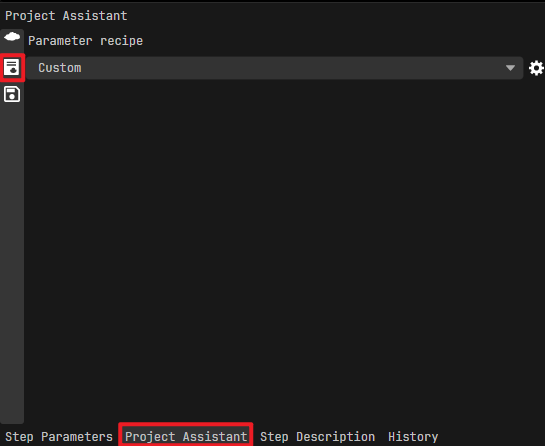
Click
 .
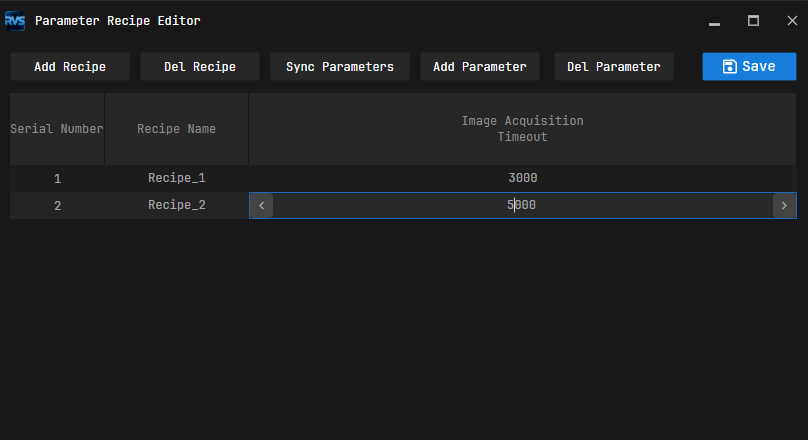
.In the Parameter Recipe Editor dialog, click Add Recipe and enter a recipe name.
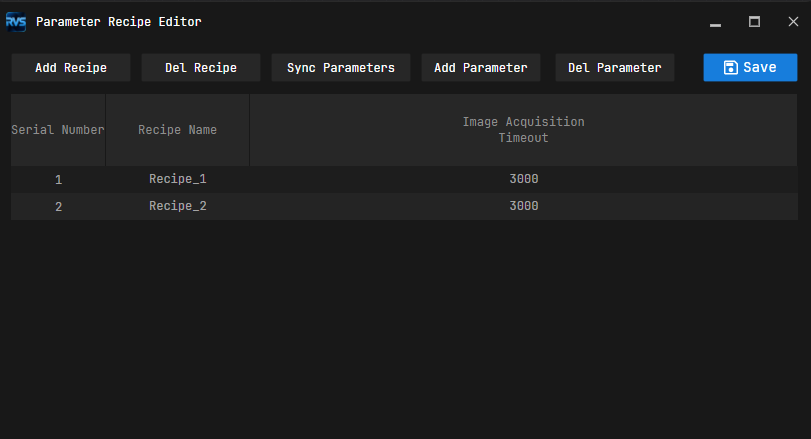
Edit the parameter recipe as needed.
Click Save to apply the settings.
If the project uses multiple parameter recipes, repeat the steps above. A new parameter recipe automatically inherits the current step parameter settings from the project.
Edit a Parameter Recipe
In the Parameter Recipe Editor dialog, you can do the following:
View the Parameter Recipe Number
When switching recipes through communication, the robot-side program must specify the parameter recipe number in the switching command instead of the recipe name. The number is displayed in the first column.
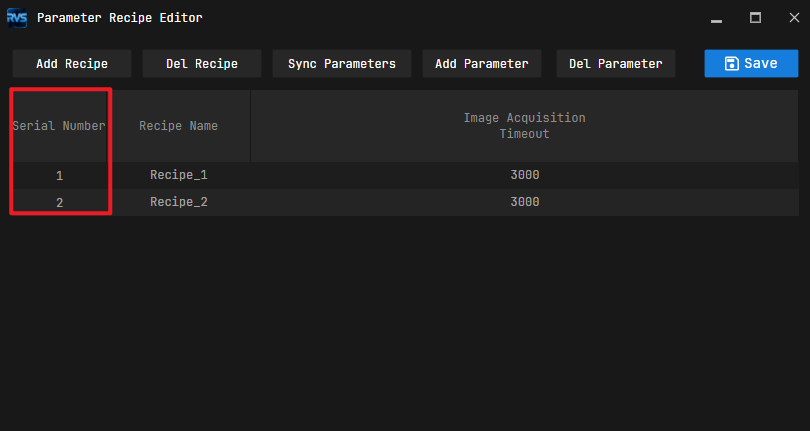
Delete a Recipe
a. Select the target recipe and click Delete Recipe.
b. Click Save to apply the settings.
Add Step Parameters to a Parameter Recipe
a. Click Add Parameter.
b. In the Select Step Parameters dialog, select the step to add in the left panel and select the step parameters to add to the recipe in the right panel. Click OK when finished.
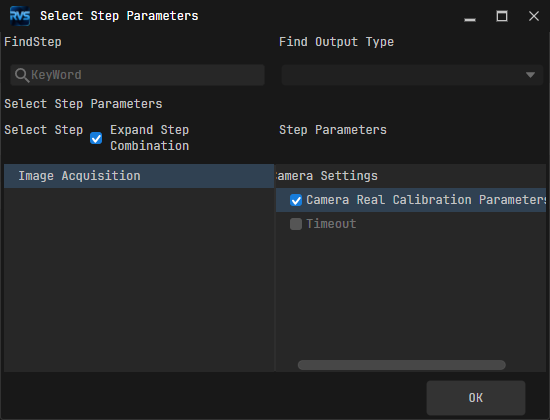
c. Click Save in the Parameter Recipe Editor dialog to apply the settings.
Modify Step Parameters in a Parameter Recipe
In the target recipe, double-click the parameter value to edit it. Then click Save.
Delete Step Parameters from a Parameter Recipe
a. In the target recipe, select the step parameter to delete and click Delete Parameter.
b. Click Save to apply the settings.
After deletion, the step parameter is removed from all parameter recipes.
Update Step Parameters from the Current Project Configuration
a. In the target recipe, select the step parameter to update and click Sync Parameters.
b. Click Save to apply the settings.
Apply or Switch a Parameter Recipe
Parameter recipes can be applied or switched in either of the following ways:
Through communication: Send the corresponding switching command from the robot side according to the communication interface description, and specify the parameter recipe number in the command.
Through the software:
In the project configuration pane, click the Project Assistant tab, then click (
) to open the Parameter Recipe tab.In the Parameter Recipe tab, select the parameter recipe for the current workpiece from the dropdown list. The selected recipe takes effect when the project runs.
Attention
After applying a parameter recipe and running the project, if you modify the parameter settings again in the project, the active recipe changes. It switches to Custom when the project runs again.