Create Point Cloud Model from a Point Cloud File
In this workflow, a point cloud file is imported to generate a point cloud model, and pick points are then manually set.
The overall operation process is shown in the figure below.

Import Point Cloud
Select Point Cloud File
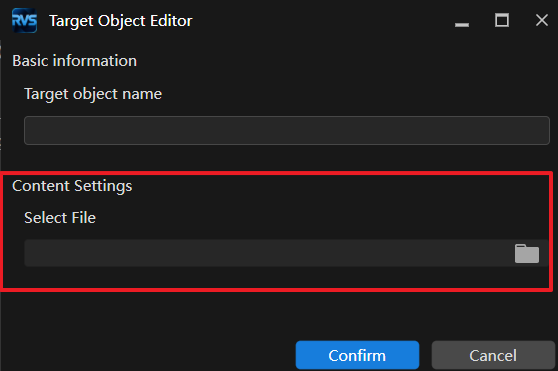
After selecting “Import Point Cloud File” in the point cloud model workflow selection interface, select the point cloud file used to create the target object model in the pop-up interface.
Attention
The imported point cloud file must be in PCD format and must contain normals saved by the Save Results to File step.
Set 3D ROI (Optional)
To quickly remove irrelevant point clouds from the scene and extract the target object point cloud, enable the “Remove irrelevant point cloud using 3D ROI” option.
After the option is enabled, a 3D ROI box appears in the point cloud display area. Adjust the position and size of the box to define the valid region of the target object. For detailed instructions, see Set 3D ROI.
Set Edge Point Cloud Estimation Method
The edge point cloud estimation method is used to estimate the point cloud at the target object edges to assist subsequent model editing and pick point settings. The system provides two methods:
2D
The 2D method for estimating point cloud edges is based on edge detection of RGB images acquired by the camera to extract edge point clouds. Applicable when target object edges have obvious features in RGB images.
For specific parameter explanations, see 2D Edge Point Cloud Estimation.
3D
The 3D method for estimating point cloud edges is based on edge detection of point cloud data to extract edge point clouds. Applicable when target object edges are not obvious in RGB images but have obvious features in point cloud data.
For specific parameter explanations, see 3D Edge Point Cloud Estimation.
Edit Model
This step is the same as “Create Point Cloud Model from Camera Data”. See Create Point Cloud Model from Camera Data - Edit Model.
Set Pick Points
This step is the same as “Create Point Cloud Model from Camera Data”. See Create Point Cloud Model from Camera Data - Set Pick Points.
Save Model
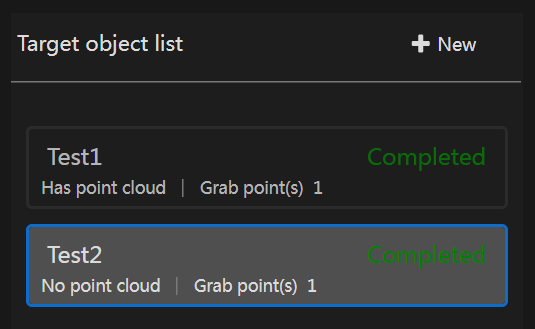
Click the Save button in the lower-right corner to save the current model and pick points. Saved target object models appear in the Target Object List on the left side of the interface.