User Interface
Welcome Screen
If there is no autoloaded solution, RVS 2.0 displays the welcome screen when you open it, as shown below:
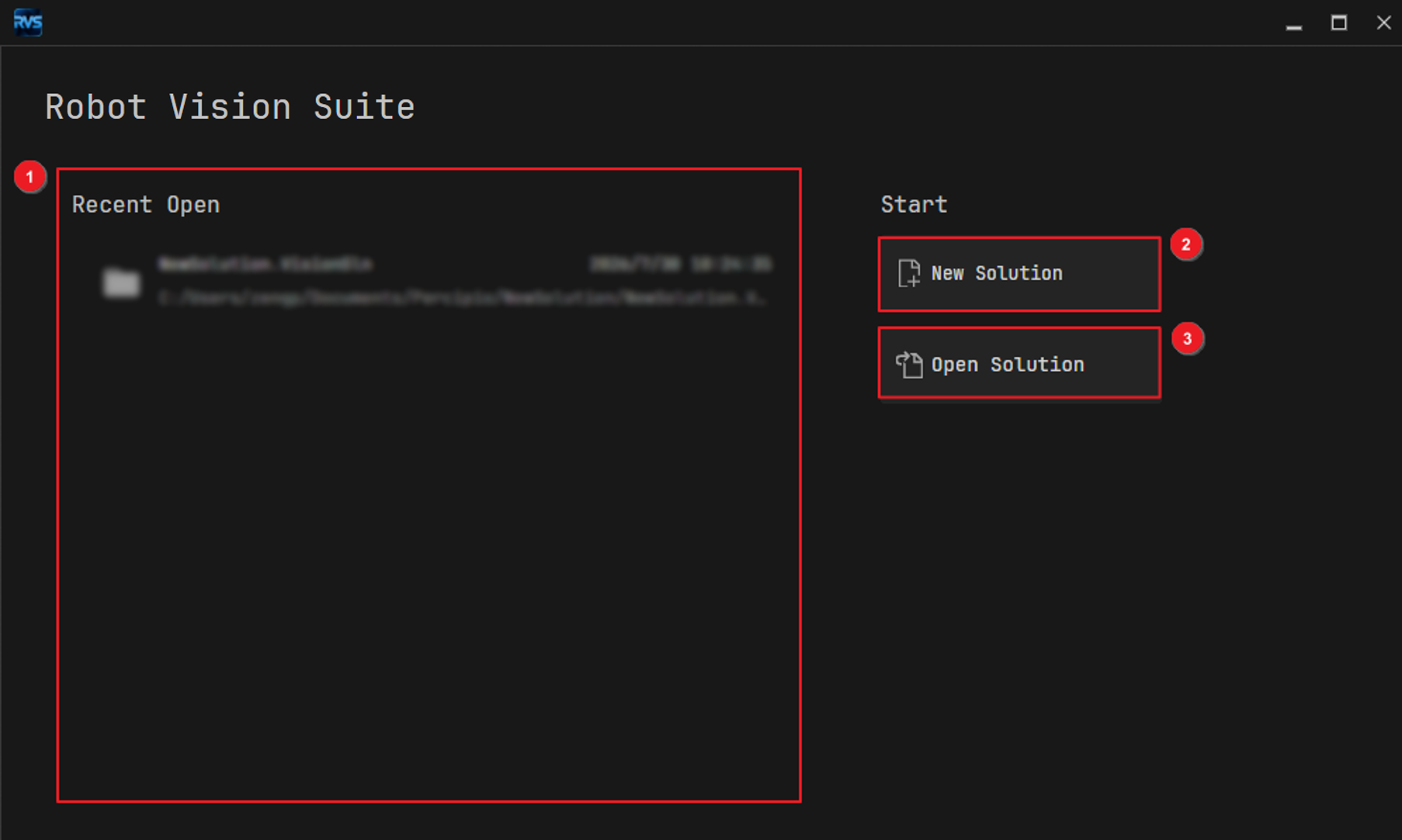
The welcome screen consists of the following areas:
Area |
Description |
|
|---|---|---|
1 |
Displays recently opened solutions. Click the name to open the corresponding solution. |
|
2 |
Creates a new solution based on a solution template. |
|
3 |
Opens an existing solution stored locally. |
See also
For more, see Managing Solutions.
Home Screen
After you open an existing solution or create a new one, the software enters the home screen, as shown below:
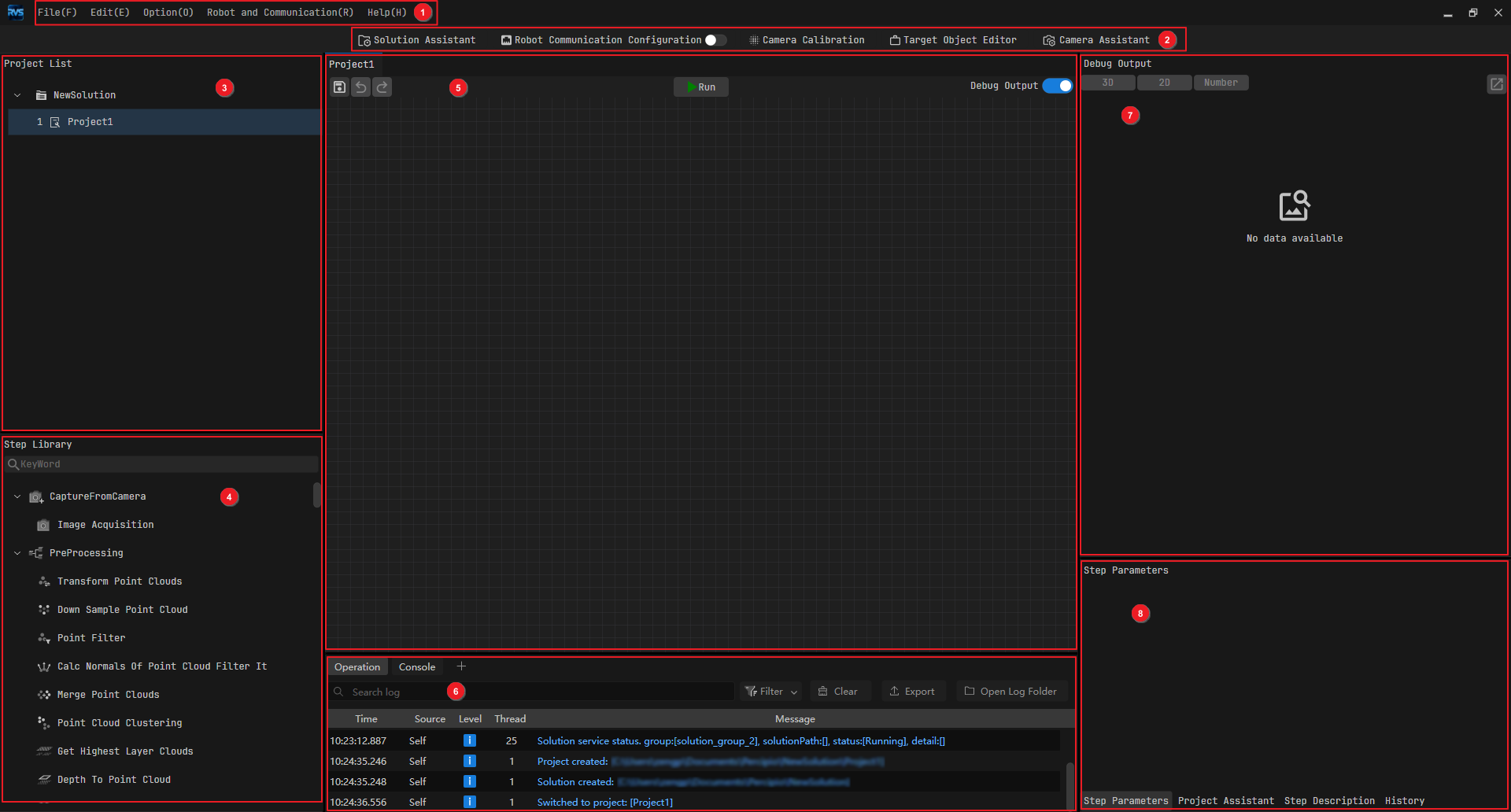
The home screen consists of the following areas:
Area |
Description |
|
|---|---|---|
1 |
Includes File, Edit, Options, Robot and Communication, and Help. |
|
2 |
Provides quick access to commonly used tools including Solution Assistant, Robot Communication Configuration, Camera Calibration, Target Object Editor, and Camera Assistant. |
|
3 |
Displays all projects in the current solution. |
|
4 |
Includes all the Steps needed to create a project. |
|
5 |
Edits project workflows and logic flows of a vision project. |
|
6 |
Displays the log in real-time while running a project, so you can find the execution record of a certain moment. |
|
7 |
Displays debug output results of the Steps in a vision project. |
|
8 |
Includes the following tabs: Step Parameters, Project Assistant, Step Description, and History. |