Camera Assistant
Camera Assistant loads project cameras, applies initial configurations from asset files, displays global camera status, and provides centralized start and stop controls.
About Camera Assistant
Note
Before using Camera Assistant, make sure the camera is connected correctly and recognized by the system. Some information may be blank when no camera is connected.
To open Camera Assistant, click the Camera Assistant button on the main toolbar:

The Camera Assistant window is shown below.
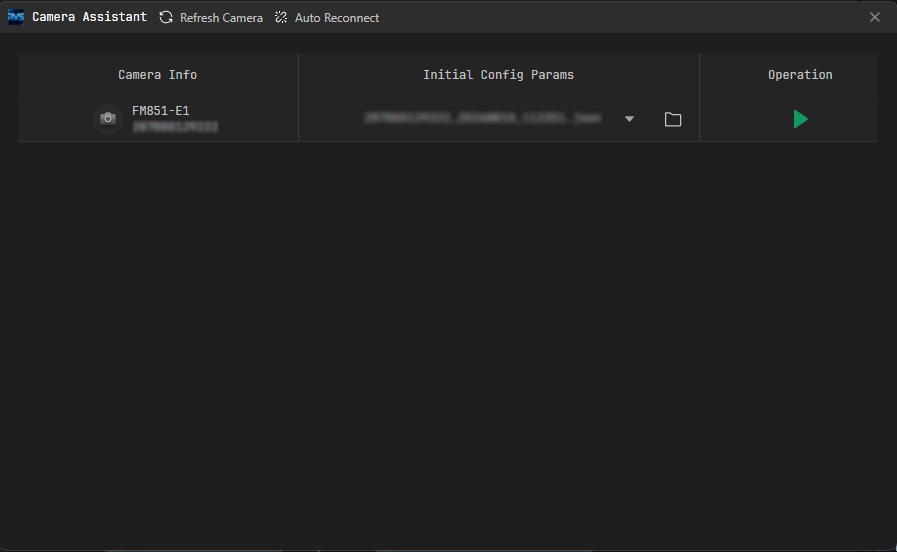
The window contains the following areas:
Area |
Description |
|---|---|
Toolbar |
Located at the top of the window, with Refresh Cameras and Disconnect and Reconnect operations. |
Camera Information |
Displays the model, serial number, status, and other basic information for connected cameras. |
Initial Configuration Parameters |
Displays or configures the camera’s initial parameters. |
Operations |
Starts or stops camera acquisition. |
Refresh the Camera List
Click Refresh Cameras on the toolbar to scan for and update the available camera list.
Start Camera Acquisition
Select a camera in the list and click the  button in the Operations column to start acquisition.
After acquisition starts, the button changes to  . Click it to stop acquisition.
A colored dot is displayed beside the camera icon in the Camera Information area to indicate the camera status:
Indicator |
Meaning |
|---|---|
Green dot |
The camera is connected normally, its parameters are accessible, and it can be called by projects. |
No dot |
The camera is loaded but not started, or has been stopped, and cannot be called by projects. |
Red dot |
The camera connection is interrupted or the device is abnormal, and it cannot be called by projects. |
Add an Initial Configuration File
Click the folder icon in the Initial Configuration Parameters area and select a local camera configuration file to load its parameters into Camera Assistant.
Disconnect and Reconnect
Click Disconnect and Reconnect on the toolbar to open the settings window. After enabling Reconnect on Disconnect, the camera automatically attempts to reconnect according to the configured parameters when its connection fails:
Reconnect Attempts: Maximum number of automatic reconnection attempts. The default is 3.
Interval: Waiting time between reconnection attempts, in milliseconds. The default is 3000 ms.
After configuration, the camera automatically attempts to restore the connection using these parameters when disconnected.