Solution Assistant
Solution Assistant centrally manages solutions. It supports quickly switching between multiple solutions, configuring automatic solution loading, and opening multiple solutions in the background.
About Solution Assistant
To open Solution Assistant, click the Solution Assistant button on the main toolbar:

The Solution Assistant window is shown below.
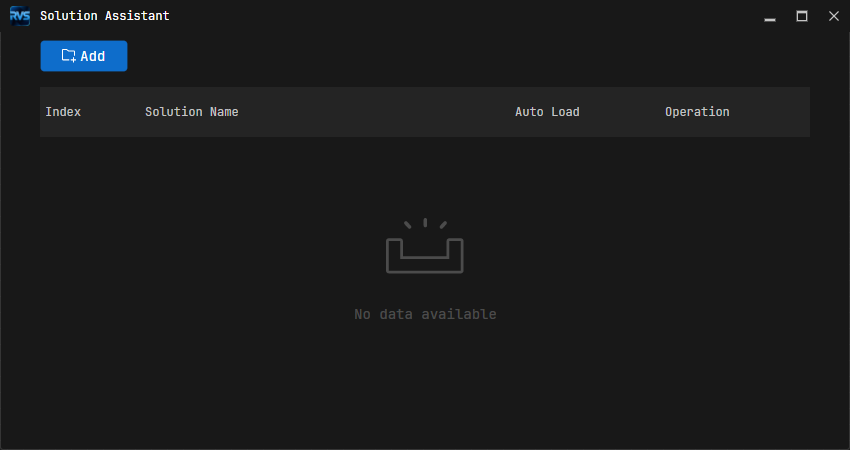
The window contains the following areas:
Area |
Description |
|---|---|
|
Adds a solution to the Solution Assistant list. |
Solution List |
Displays added solutions and their automatic loading status. |
Operations |
Opens, closes, or removes solutions in the background. |
Add a Solution
Click the Add Solution button on the toolbar and select a SolutionName.VisionSln file to add the solution to the list.
Switch Solutions
Double-click any solution row in the list to switch to that solution.
Automatically Load a Solution
Enable Auto Load to load a solution automatically when the software starts.
Note
At most two solutions can be set to load automatically at the same time.
When two solutions are enabled, the solution listed first is loaded and displayed automatically at startup.
Open a Solution in the Background
After enabling Auto Load, click  to open the solution in the background. After it opens, you can find the
 ucvvisionservice.exe process in Task Manager (Windows) or System Monitor (Linux).
Close a Background Solution
Click  to close the background solution process.
Remove a Solution
Click  to remove a solution from the Solution Assistant list.