3D Fine Matching
Function Description
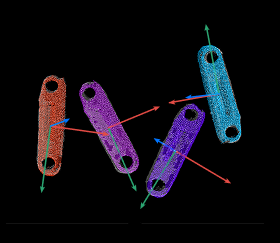
Based on the initial poses obtained from “3D Coarse Matching”, this Step performs precise matching between the point cloud model and the original point cloud, outputting more accurate poses of the target object.
Use Cases
This step usually follows 3D Coarse Matching. Based on the initial candidate poses provided by the previous step, it performs more precise matching to output more accurate poses of the target object, which can be used as grasp points.
Input
Point Cloud with Normals (Required): Scene point cloud data containing normal information.
Initial Candidate Poses (Required): Rough poses calculated by the preceding “3D Coarse Matching” step.
Pose Classification Labels (Optional): Usually the target object classification labels output by deep learning related steps. The number of labels is the same as the number of input point clouds.
Pose Confidence (Optional): Usually the target object confidence values output by deep learning related steps. The number of values is the same as the number of input point clouds.
Surface Template Point Cloud (Optional): Surface template point cloud for fine matching.
Edge Template Point Cloud (Optional): Edge template point cloud for fine matching.
Geometric Center Pose (Optional): The geometric center point pose of the workpiece.
Output
Grasp Poses: Final grasp point poses calculated by fine matching.
Object Point Cloud: Object point cloud generated based on matching results.
Pose Classification Labels: Object classification labels corresponding to fine matching results.
Pose Confidence: Confidence corresponding to fine matching results.
Pose Matching Score: Matching score between the workpiece template and the target object. Higher scores indicate better matching. The number of values is the same as the number of output grasp poses.
Grasp Point Index: The index corresponding to each grasp pose.
Parameters
Model Settings
Model Selection
Select the point cloud model file. Model files are created in the “Workpiece Library”.
Matching Mode
If the point cloud template is a workpiece surface template, select Surface. If the point cloud template is a workpiece edge template, select Edge.
Matching Method
Matching Method
Select the matching algorithm for 3D fine matching.
nearest_neighbor: Recommended for most applications. It provides better robustness and faster matching.
GMM: Use this when nearest_neighbor does not produce satisfactory results, such as with low-quality point clouds or cylindrical point clouds.
Iteration Settings (nearest_neighbor)
Nearest Point Search Radius Quantization
This parameter is used to adjust the nearest point search radius. Nearest Point Search Radius = Nearest Point Search Radius Quantization × Sampling Interval.
Tuning tip: The value should match the initial pose deviation of the input. When the initial pose deviation is large, that is, when the scene point cloud and template point cloud differ significantly, increase this parameter to expand the nearest point search radius so each point can find a nearest neighbor. When the initial pose deviation is small, reduce this parameter. The minimum supported value is 1.0. If set lower, some sparsely distributed points may fail to find nearest points, which can affect output results.
Iteration Settings (GMM)
Standard Deviation
The value should match with the initial pose deviation. If the intial pose deviation after the “3D Coarse Matching” Step is large (that is, the deviation between the scena point cloud and the point cloud model is large), you should set a larger Standard Deviation value accordingly.
Tuning tip: If the set value is larger than the initial pose deviation, there will be a great result deviation. In most cases, this value should not exceed 10 mm. For smaller workpieces, we recommend to adjust the standard deviation to a smaller value for more accurate matching results.
Multi-Object Matching Speed Boost
Tuning tip: If there are many objects in the scene, enabling this option is recommended. After enabling it, this step runs faster when matching many objects, but slower when matching a small number of objects.
Sampling Settings
Sampling Interval
This parameter is used for the downsampling of the model and scene point cloud. The bigger the interval, the less the point number of the sampled point cloud, and the lower the accuracy of model estimation.
Tuning tip: The smaller the sampling interval is, the more accurate the output result will be. However, if this value is too small, convergence may fail, so the nearest point search radius quantization should be adjusted accordingly.
Result Verification Settings
Mean Squared Error Threshold
When the result mean squared error is greater than this threshold, the result is considered valid and used as output.
Tuning tip: A higher threshold usually means fewer valid matches but higher output accuracy. A lower threshold usually means more valid matches but lower output accuracy.
Quantization of Search Radius for Validation
Used to adjust the search radius for validation. Search Radius for Validation = Quantization of Search Radius for Validation × Sampling Interval. When the distance between the scene point cloud and the point cloud model is less than this value, it is considered that the scene point cloud and point cloud model coincide. The more points that coincide, the higher the validation score for the matching result.
Tuning tip: The value of this parameter affects the matching score. A higher value uses looser criteria for evaluating the matching result, which means that the matching score may still be high even if the pose matching result is of poor quality. A lower value uses stricter evaluation criteria. Set this value according to the actual situation of the point cloud. If the points in the point cloud are sparse, use a larger value.
Confidence Threshold
The confidence threshold is used to determine whether a matching result is valid. Matching results with confidence values higher than the threshold are considered valid, while those below the threshold are not.
Tuning tip: A higher threshold leads to fewer valid matches, but the output results are more accurate. A lower threshold leads to more valid matches, but the output results are less accurate.
Output Settings
Number of Detected Poses in Each Point Cloud
Sets the expected number of matching results for each input point cloud. Adjust this parameter as required.
Tuning tip: The larger the value, the more matches are generated.
Result Visualization
Visualization Options
Used to select the content to visualize. Available options include Sampled Model, Sampled Scene, and Matching Result.